Collections and fields
Create a collection for content you repeat — blog posts, case studies, team members — and choose the fields each item has.
A collection holds content you repeat: blog posts, case studies, team members, questions and answers. You set up its fields once, then anyone on the site can add items without touching the design.
-
Press C or click Content in the left bar. Content opens full width, with your collections on the left and how many items each one has.
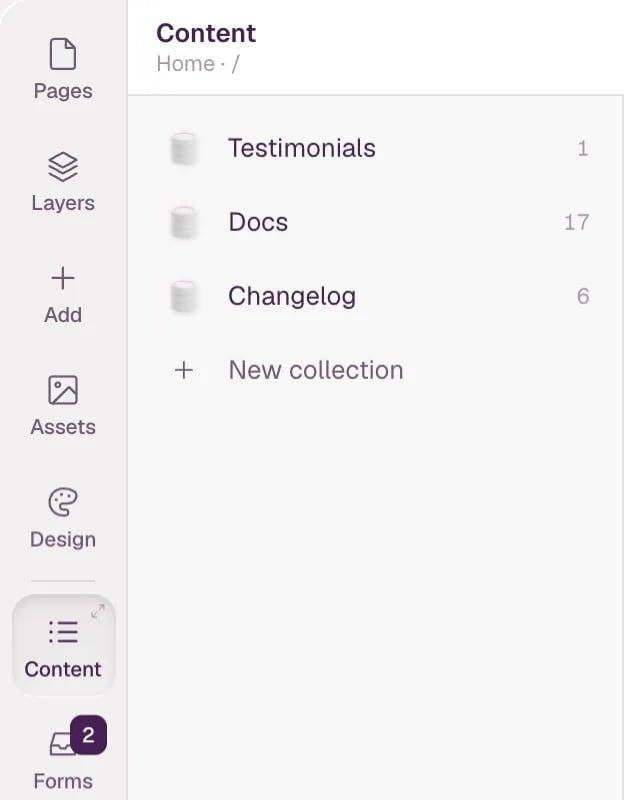
- Collections Click one to see its items.
- New collection Starts a new collection from a template.
-
Click New collection. Under Start from, pick a template: Blog, Case studies, Team, FAQ or Custom. Each card says how many fields it brings. The preview on the right shows how an item will be edited.
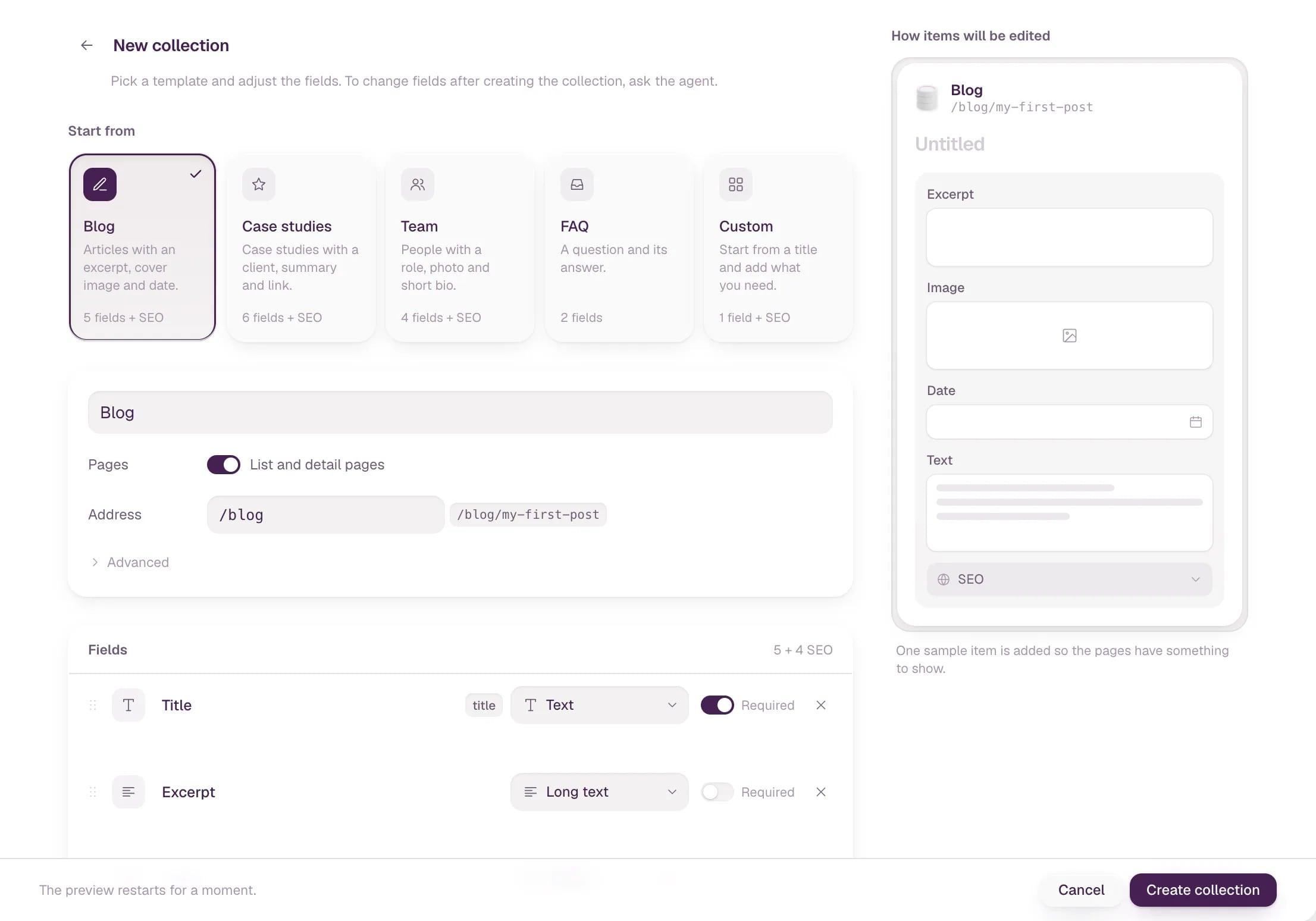
Templates are only a start. Every field can be renamed, removed or added before you create the collection.
-
Name the collection. Leave Pages on if every item needs its own page, like a blog post. The Address is where the list lives, and each item gets its own address under it. Turn Pages off for content you only show inside sections, like FAQ or a team.
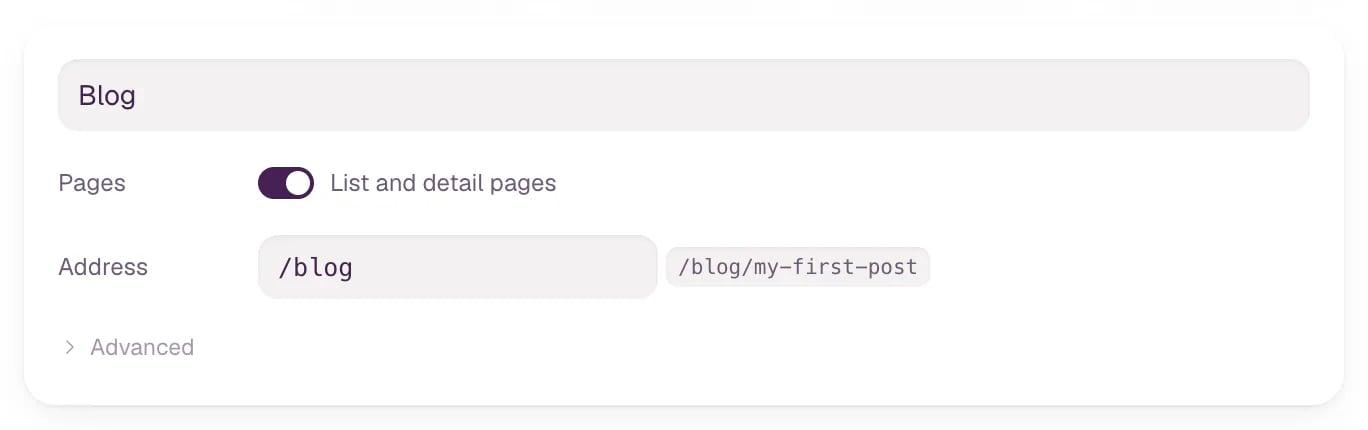
- Pages A list page and a page for each item.
- Address Where the list lives. Items go under it.
-
Adjust the fields. Rename a field, pick its type, mark it Required, or drag it to a new place. + Add help for editors adds a short hint under the field. Add field adds another one. The first text field is the item's title.
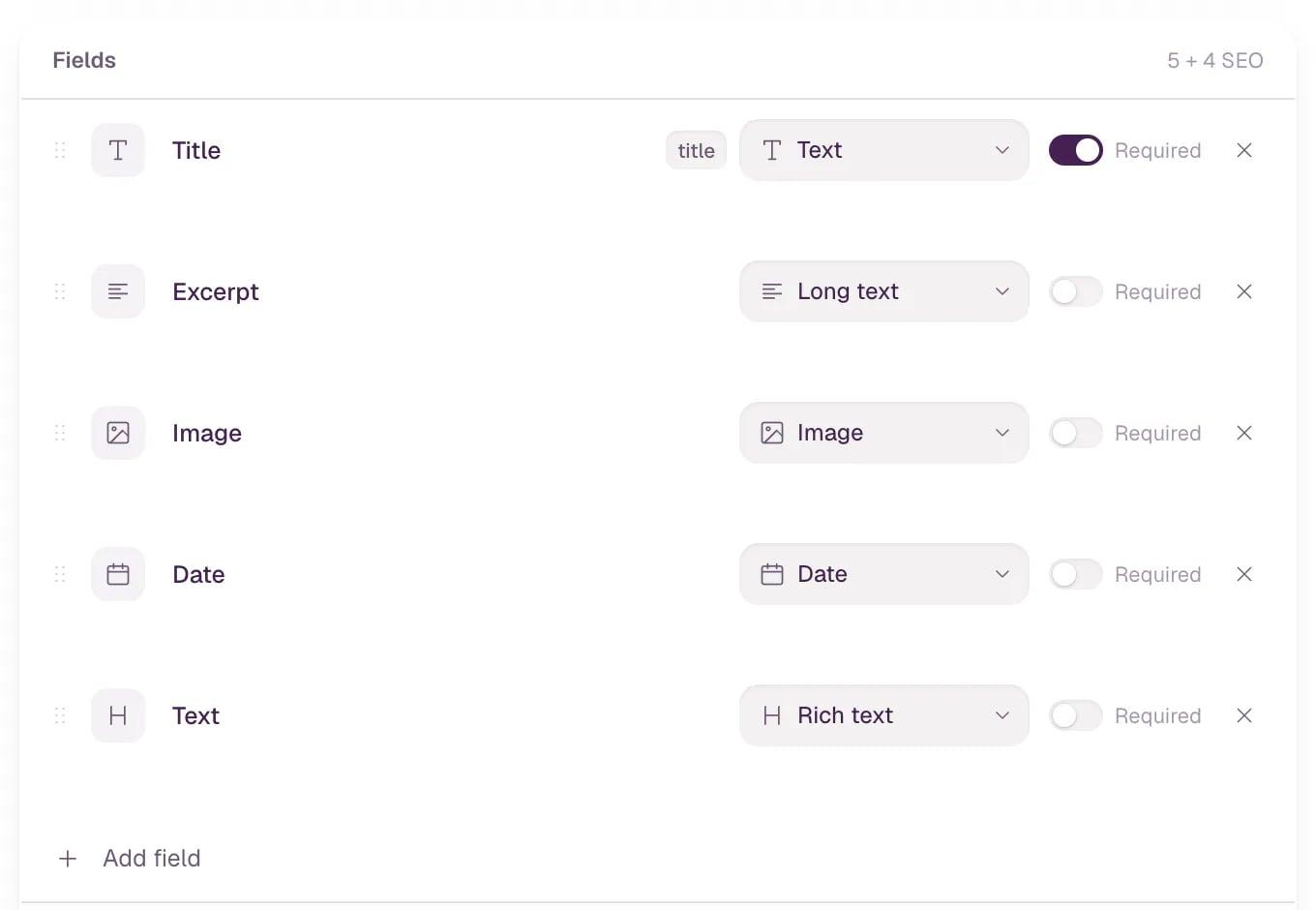
- Title field The first text field names the item in lists.
- Type What the field holds. See the table below.
- Required An item can't be published while this is empty.
-
Leave SEO fields on to give each item its own title, description and share image for search and social. Click Create collection.

- SEO fields Title, description and share image for each item.
- Create collection Writes the collection into the site and restarts the preview.
The preview restarts for a moment. The collection gets one sample item, saved as a draft, so its pages have something to show.
Field types
| Type | Use it for |
|---|---|
| Text | A name, a title, a short line |
| Long text | A plain paragraph, like an excerpt |
| Rich text | Formatted text with headings, lists, quotes and links |
| Image | A picture you upload or pick from the site's media |
| Date, Date & time | A day, or a day and a time |
| Number | Prices, capacities, an order |
| Yes / no | A switch, like "Featured" |
| Link | An address, a page of the site, an email |
| Select | One value from a list you type in, separated by commas |
| Reference | An item from another collection, like the author of a post |
A Select field needs its options, and a Reference field needs the collection it points to. Create collection stays disabled until they have them, and the note next to it says what's missing.
Note The Content panel can't change a collection's fields after you create it. The New collection screen says so too: to change them later, ask the agent. The fields are part of the site's code, in src/cms.config.ts.
Where the content lives
The collection and its fields are code in your site. The items are data in the site's own database. When you publish an item, it goes to the live site straight away — the site doesn't need to be rebuilt.
Tip Next, write and publish items, show a collection on a page, or see how collection pages, filters and search work.