Start from Figma
Paste a Figma link and Tandmade proposes the site — pages, screen sizes, reusable parts and the design system. You check the plan, then the agent builds it.
Paste the link to your Figma file and Tandmade plans the site from it: which frames are pages, which screen sizes belong together, what repeats. You check that plan in three steps — Pages, Design system, Build — before anything is built.
- In Figma, copy the link to the file: Share › Copy link. A link to one frame works too; Tandmade still reads the whole file.
-
On the dashboard, click New site, paste the link and click Continue. The line under the field confirms that it's a Figma file.
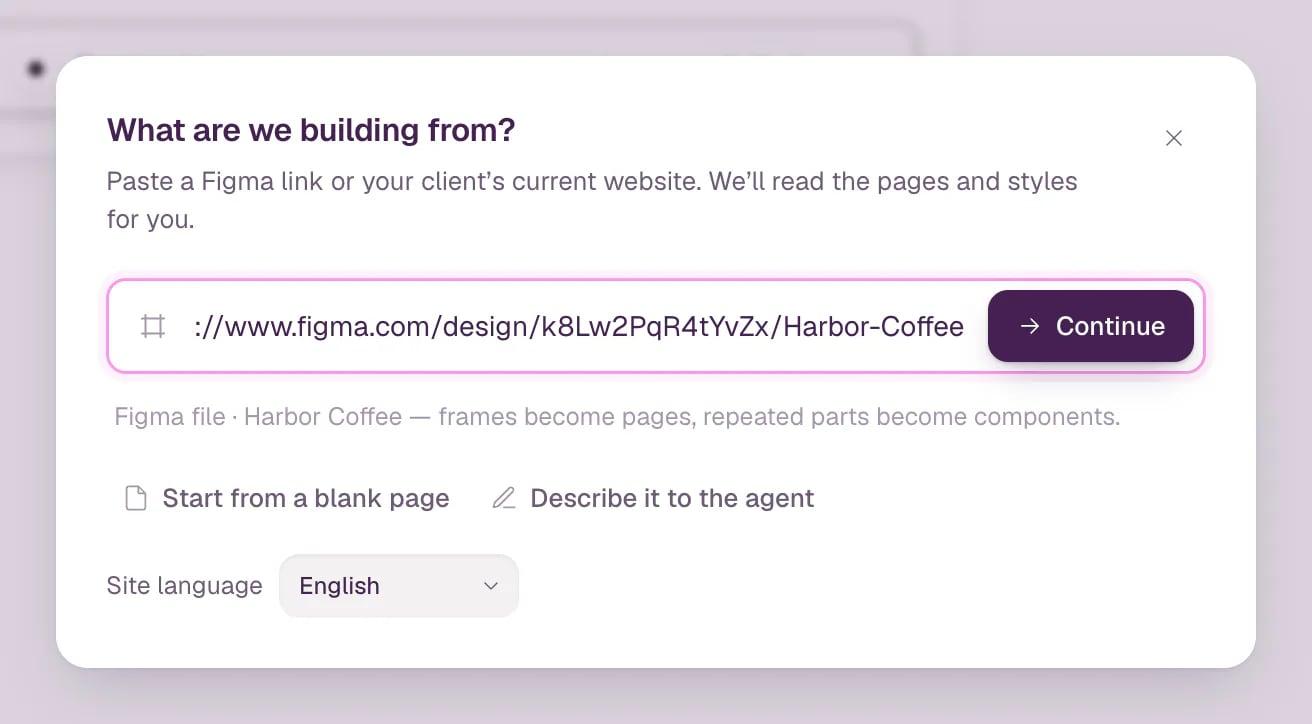
The site is named after the Figma file. If the link doesn't include the file name, Tandmade asks for one first.
- The editor opens the Build a site planner and reads the file. If Figma isn't connected yet, click Connect Figma — a one-time, read-only sign-in with your Figma account — and the planner comes back to the file.
-
Check the pages. Each card is one page of the new site, with its frames for each screen size. Click a name to rename the page; the star makes it the home page.
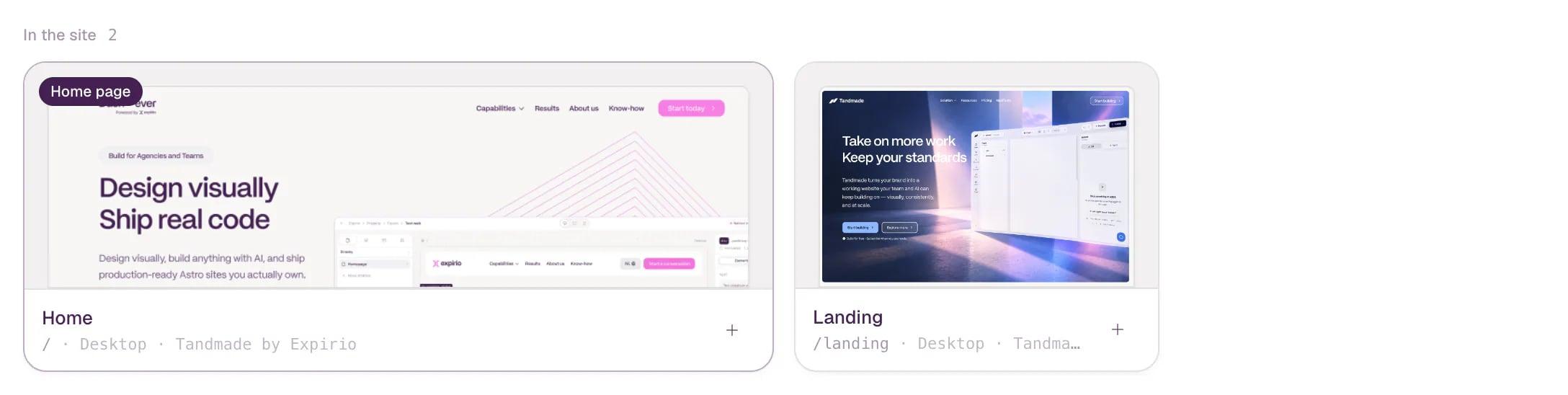
- Read from file pages — the pages of your Figma file the planner reads. only reads just that one. - Not used — frames that aren't in the site. Add turns one into a page.
-
Choose what to build. Each option you switch off isn't built and doesn't cost credits.

- Reusable components — sections and components shared across pages, edited in one place. Off: every page gets its own copy; the menu and footer stay shared. - Connect the CMS — lists with detail pages, like a blog or case studies, become collections filled from the design. Off: static pages.
- Click Read the design system. The bar next to the button shows the number of pages, the price in credits and roughly how long the build will take. Reading the design takes one to three minutes.
The Design system step then shows the fonts, colors, typography, buttons, spacing and the reusable parts Tandmade found. Switch off any part that shouldn't be built once and shared.
- Click Build site — the button shows the number of pages and the price. The build runs live in the Build step; you can close the window and it keeps going. As soon as the home page is ready, Open site takes you to the editor.
Note The bottom bar always shows the price before you build. Nothing is charged until you click Build site, and the credits come back if the build fails. Fast mode, in the top bar of the Design system step, gets the build out about 2.5× faster.
Add pages from Figma to an existing site
In the editor, open Pages, click New page and choose From Figma. The same planner opens for the site you're in.
Tip Connect Figma ahead of time in Account and sign-in. Have a live site instead of a design? Rebuild it from its URL. After the build, take the editor tour.