Keyboard shortcuts
Every shortcut in the editor on one page, grouped by what you're doing.
On Windows and Linux, use Ctrl instead of ⌘ and Alt instead of ⌥. Letter and number keys work by their position on the keyboard, so they're the same on any layout.
You don't need to learn them up front: buttons and menu items show their key when you hover them.
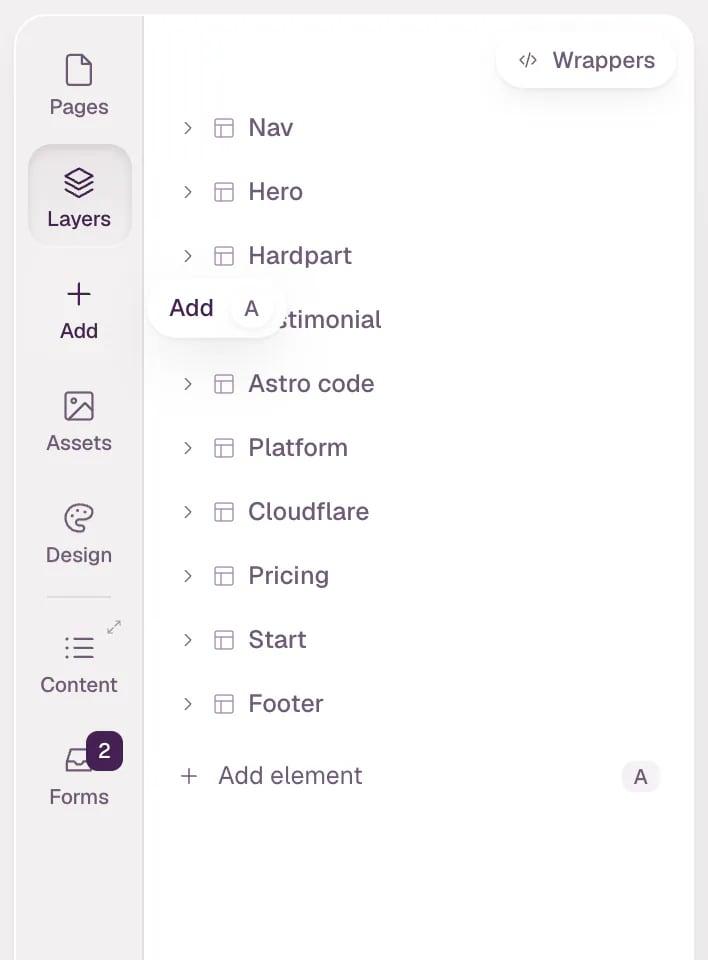
Left panel
| Shortcut | Action |
|---|---|
| P | Pages |
| L | Layers |
| A or + | Add |
| S | Assets |
| D | Design |
| C | Content |
| F | Forms |
| ⌘\ | Collapse the left panel, or pin it back next to the canvas |
Find & add
| Shortcut | Action |
|---|---|
| ⌘K or / | Open or close Find & add |
| ↑ ↓ | Move through the results |
| ↵ | Open the highlighted result |
| Esc | Close it and go back where you were |
Selection
| Shortcut | Action |
|---|---|
| Click | Select the element under the pointer |
| Right-click | Pick from everything under the pointer, plus the element's actions |
| ⇧↵ | Select the parent |
| Esc | Deselect. If the Add panel is open, close it first |
| Hold ⌥ | Measure the distance from the selection to the element under the pointer |
Change the page
| Shortcut | Action |
|---|---|
| ⌘D | Duplicate the selection |
| ⌫ | Delete the selection. On text, start typing instead |
| ⌘⌫ | Delete the selection, text too |
| ⌥↑ or ⌥↓ | Move the element up or down among its siblings (with its row focused in Layers) |
| ⌘] or ⌘[ | Bring the element forward or send it back, when elements overlap |
| ⌥C | Show the element's code |
| ⌘Z | Undo |
| ⇧⌘Z | Redo |
Text
| Shortcut | Action |
|---|---|
| ↵ | Start typing in the selected text. You can also click it again, or double-click |
| ⌘↵ | Save the text. Clicking somewhere else saves too |
| Esc | Cancel and keep the old text |
While you type, ↵ starts a new line.
Screen sizes
| Shortcut | Action |
|---|---|
| 1 | Desktop |
| 2 3 4 | Your site's other screen sizes, from the widest down, for example Laptop, Tablet and Mobile |
Number fields in the inspector
With a number field focused — move to it with Tab:
| Shortcut | Action |
|---|---|
| ↑ ↓ | Change the value by one step. Hold ⇧ for ten steps, ⌥ for a tenth |
| PgUp PgDn | Jump to the next or previous value your site already uses |
| ↵ | Type a value. Any letter or number starts typing too |
| ⌫ | Remove the value set here |
| Esc | Cancel the change you're making |
Typing $ in a field lists your design system's values to pick from.
Agent and Add
| Shortcut | Action |
|---|---|
| ⌘↵ | Send your message to the agent |
| ↵ | In Add, insert the first match for what you typed |
Note Panel and screen-size keys work whenever you're not typing in a field.
Tip See them in use: Select, move and delete elements, Find & add and Edit text and links.