Edit text and links
Change text right on the canvas or in the inspector, set heading levels and point links to a page, a section or an address.
You change text where you see it: on the canvas, in your real page. Tandmade saves it where it lives in your site's code or content.
-
Click the text on the canvas to select it, then click it again. You can also double-click it, or press ↵ while it's selected. The text becomes editable in place.
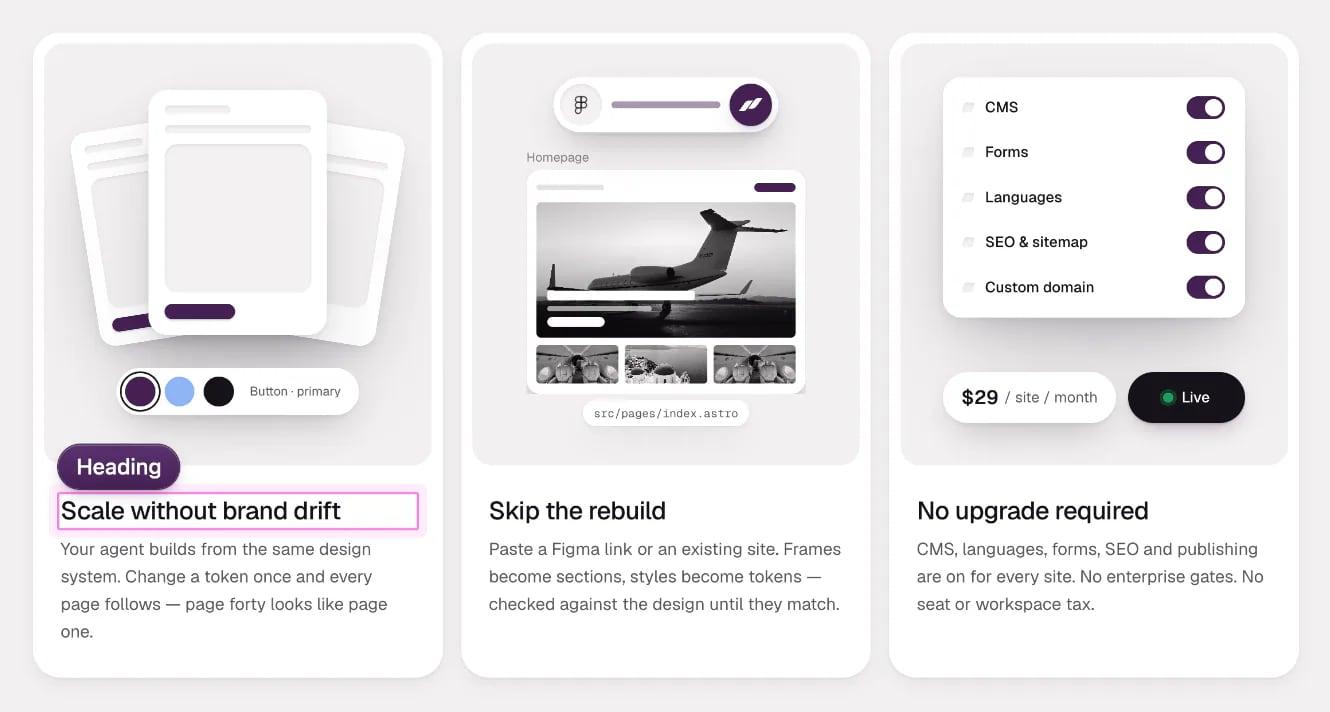
Esc cancels. ⌘ ↵ or a click anywhere else saves.
- Type. ↵ starts a new line. Press ⌘↵ to save, or click anywhere else. Esc cancels and keeps the old text.
-
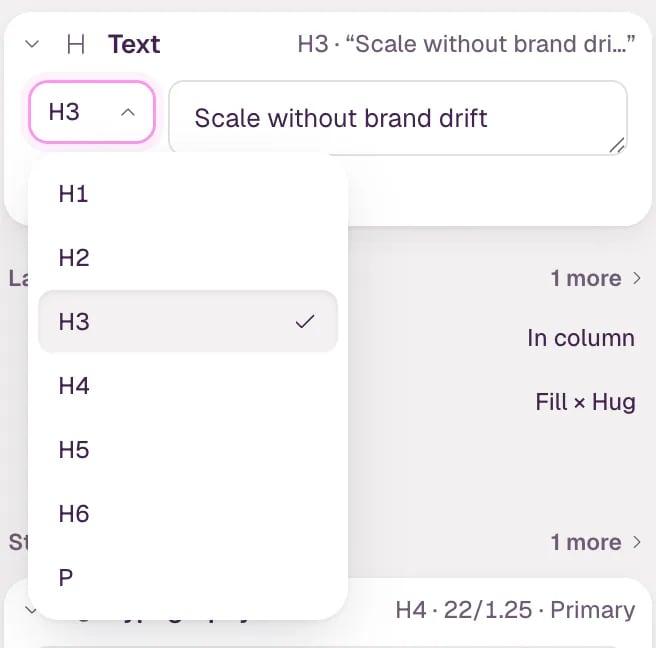
For longer text, use the inspector instead. Under Content, the Text field holds the same text; the change is saved when you leave the field or press ⌘↵. For a heading, the menu next to the field changes its level, H1 to H6. The heading keeps its look, and if it looks like a different level, a line under the field says so.
-
To change where a button or link goes, select it and use Goes to under Content: Page, Section, URL, Email or Phone. Then pick the page or section, or type the address. Open in new tab is there for pages, sections and web addresses, and Label is the text on the button.
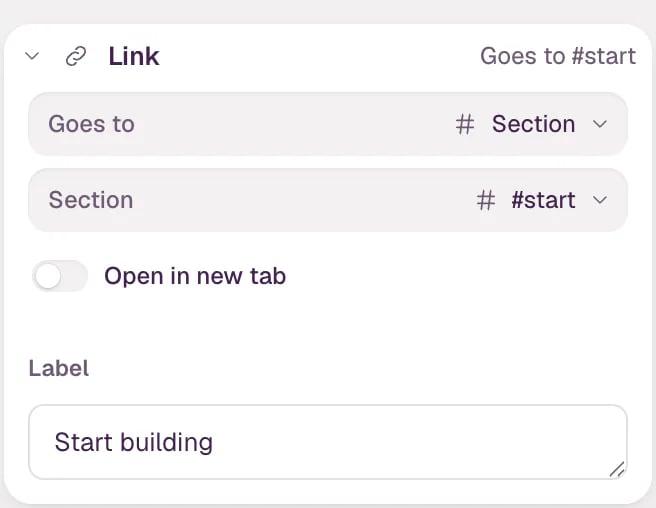
Section lists the sections that have an anchor. To add one, select the section and give it an Anchor under Content.
Text from a collection
Some text comes from a collection, like a testimonial or a blog post. The inspector then says From content and names the collection and field. Edits on the canvas or in the field are saved to that item, not to the page's code.

The item shows the change as not live yet. It goes live when you publish the item in Content — the site doesn't need to be rebuilt. Formatted text, like a blog post body, is edited in Content: use Edit in Content.
Where the change goes
You always type the real text. A label that's shown in capitals by its style is edited in its actual case.
- Text written in a page or a section is saved to that file.
- Text passed to a section, like a title, is saved where the section is used.
- Text from a collection is saved to the item.
- Text that's calculated can't be typed over. The inspector shows it read-only and you can ask the agent to change it.
Text shared by all languages
On a site with more than one language, some text, like a menu or a footer, is shared by all of them. When you edit it while previewing another language, a note says Shared by all languages — this changes every language. Click Ask the agent to translate it instead to give that language its own text.
Tip To restyle text, use the Style part of the inspector — see Design tokens and styles. To change images, see Images, video and embeds.