Motion and interactions
See everything that moves an element, play it on the page, add motion from a catalog, and manage the interactions your whole site shares.
Everything that moves an element — a fade as it scrolls into view, a hover transition, a loop — is listed in one place: Motion, in the Interactions group of the inspector.
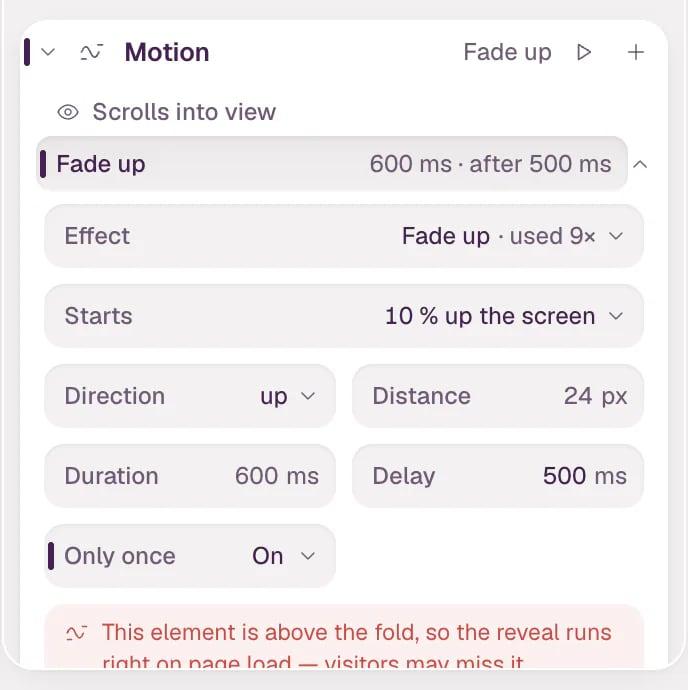
- Select an element and open Motion. Each row reads from left to right: when it plays, what it does, and how long it takes. Scrolls into view › Fade up › "600 ms · after 500 ms" is a fade that starts as the element comes into view. Rows are grouped by when they play: Page loads, Scrolls into view, Loops, Scrolls past, Follows the pointer and Hovered.
-
Click a row to open its settings. For Fade up that's the Effect, when it Starts, its Direction, Distance, Duration, Delay and Only once, with Play, Code and Remove below.
-
Click ▶ in the Motion header to play it on the page. In the editor, every interaction rests in its final state, so you can still click and select the element.
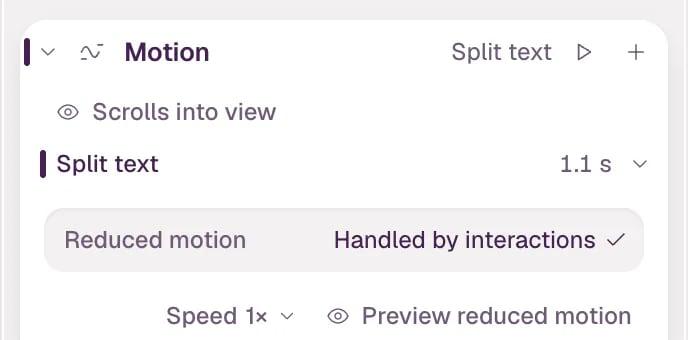
▶ plays everything on the selected element.
-
To add motion, click + in the Motion header. The catalog is sorted by when it plays — page loads, scrolls into view, loops, scrolls past, follows the pointer, is hovered. Point at an effect to try it on the element, and click it to add it. Under From this site are the interactions your site already has.
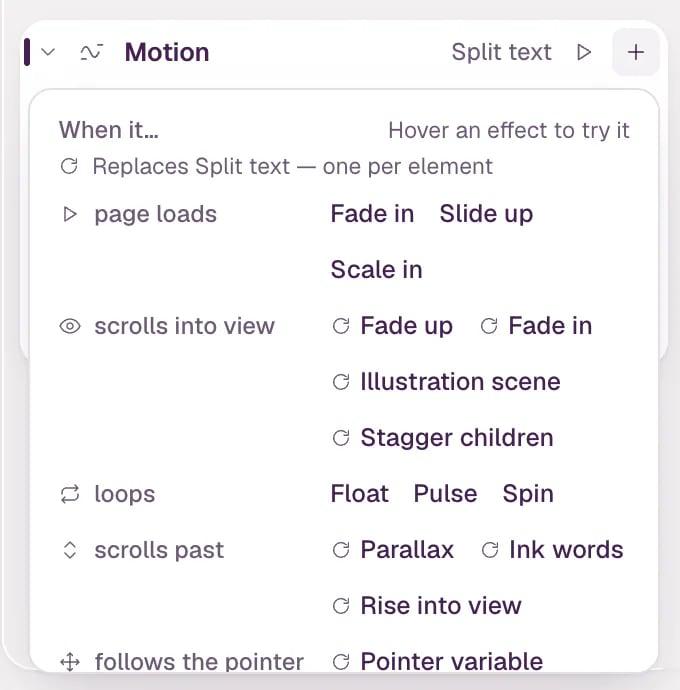
An element has one interaction at a time. The catalog says which one a new pick replaces.
-
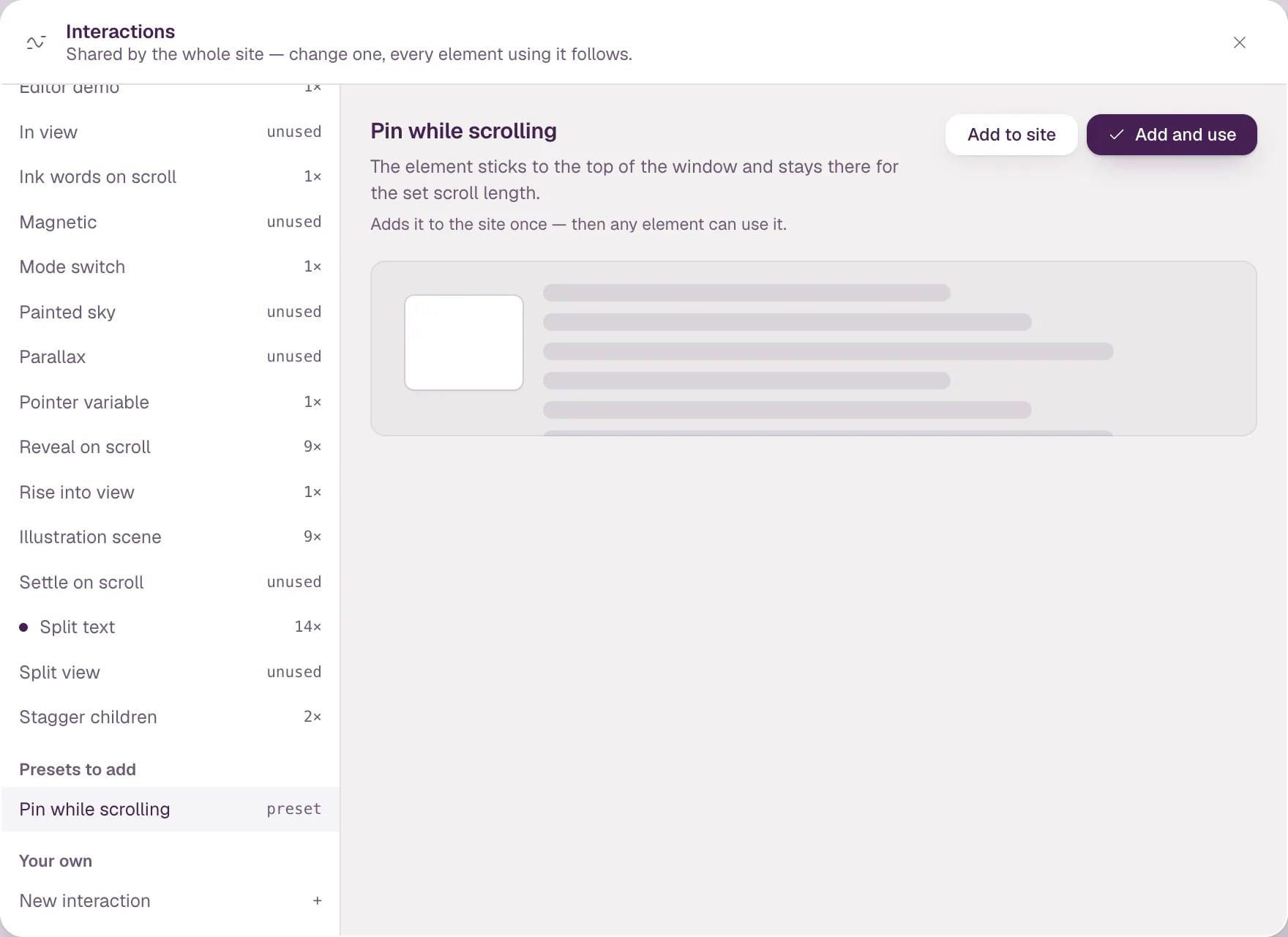
Click Manage… in the catalog to open Interactions: the interactions your whole site shares. Change one and every element that uses it follows. On the left is On this site, with how many elements use each one, Presets to add, like Pin while scrolling, and New interaction for your own. On the right are the selected one's description, settings and code. Add and use adds a preset to the site and puts it on the selected element.
Note Visitors who ask their device for less motion get a calmer site. The Reduced motion row in Motion says how this element handles it, and Design › Motion sets it for the whole site.
Tip Assets lists your site's interactions too. Click one to select the first element that uses it. Next: The style panel, Design system: colors, fonts, spacing and Element code and the code dock.