Working with the agent
Describe a change in plain words, check the agent's proposal and its code, then apply it or send it back.
The agent changes your site the way a developer would: in the site's own code, with your design system. It always shows a proposal first. Nothing on your site changes until you click Apply.
Ask for a change
- Select what you want to change on the canvas, or nothing for the whole page. Then open the Agent tab at the top of the inspector.
-
Describe the change in the box, like "Make this button say Start free".
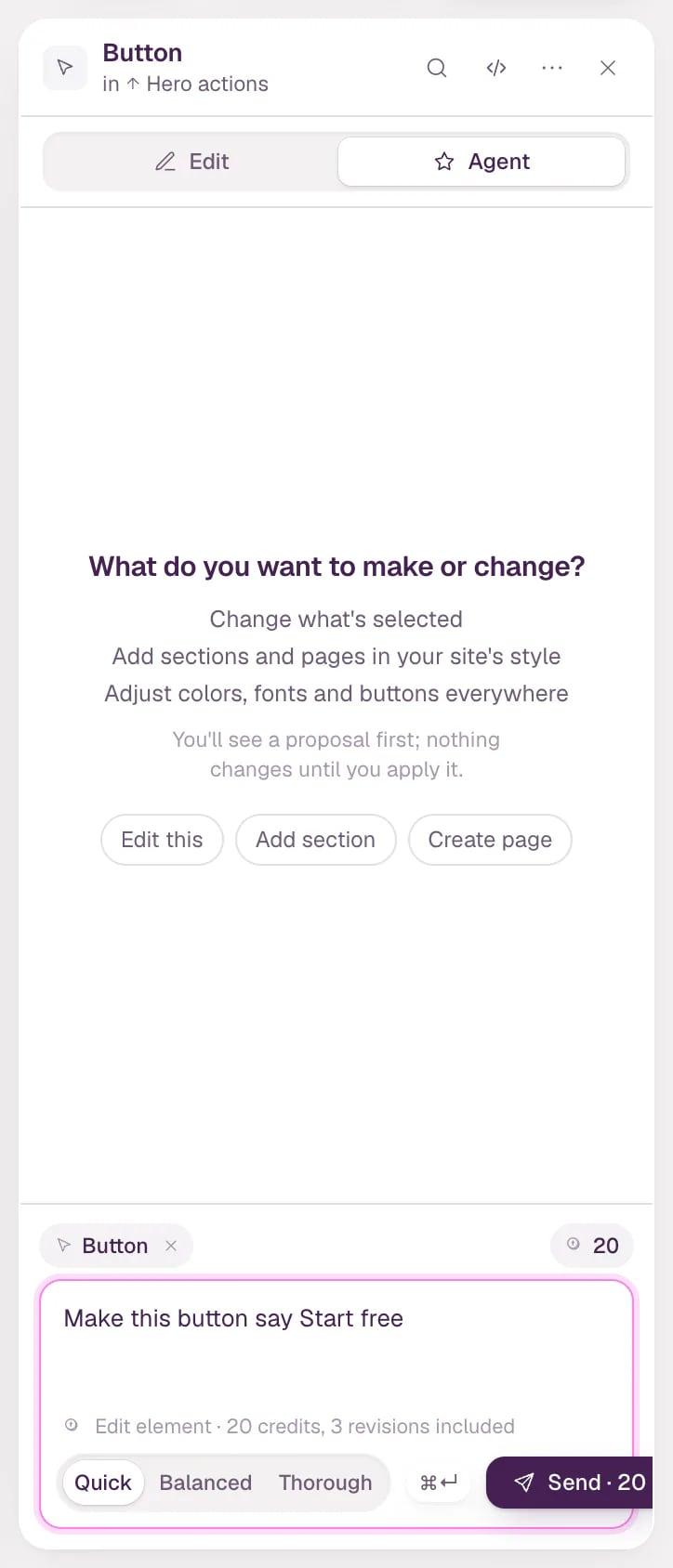
- Scope Where the agent works. Click × to widen it.
- Price What this request costs, before you send it.
- Level How long the agent thinks about it.
- Check the scope chip above the box. It starts at your selection. Click its × to widen it step by step: the section, the page, the whole site. If your message says "this page" or "the whole site", the chip follows it and says from your message.
- Pick a level. The editor suggests one from your message; click another to choose it yourself.
| Level | Use it for | |---|---| | Quick | Text, colors, small style tweaks and questions. The fastest answers. | | Balanced | Typical edits of a section. | | Thorough | Layout, UX, animation, design and new sections. Thinks the longest. |
- Click Send or press ⌘↵. The line above the levels shows the price in credits before you send. A paid edit includes a few follow-up revisions of the same thing, and the price line says how many.
Review the proposal
After a short while the agent answers with a proposal card: what it will change, and in which part of the site.
Open Details › Show code changes to see the exact diff for each file. You can apply it from there too.
- Apply writes the change. It's one step: ⌘Z takes it back.
- Reject asks why. Leave the reason empty to just drop the proposal. Type one and the button becomes Reject and retry: the agent tries again with your note, and the button shows what that costs.
Credits
The coin pill next to the scope chip shows how many credits your workspace has left. Click it to see recent charges. When a request needs more than you have, the price line turns red and offers Get credits.
Tips for good results
- Describe the outcome, not the code: "A booking form that asks for route, date and passengers" works better than a list of HTML fields.
- The agent reuses what your site already has: your sections and components first, then an adapted version, and only then something new — always with your design tokens.
- Keep one conversation per piece of work. Click New conversation when you move on to something else.
Tip If the agent's change breaks a page, see When something goes wrong. To start a whole site with the agent, see Create your first site. Reusable pieces it builds on are explained in Components and properties.