Create your first site
Start a new site from the dashboard — from a Figma file, a live website, a blank page or a description for the agent — and open it in the editor.
A new site takes a minute to set up. You choose what to start from, give the site a name, and the editor opens with the site running in it.
-
On the dashboard, click New site in the top right. A dialog asks What are we building from?
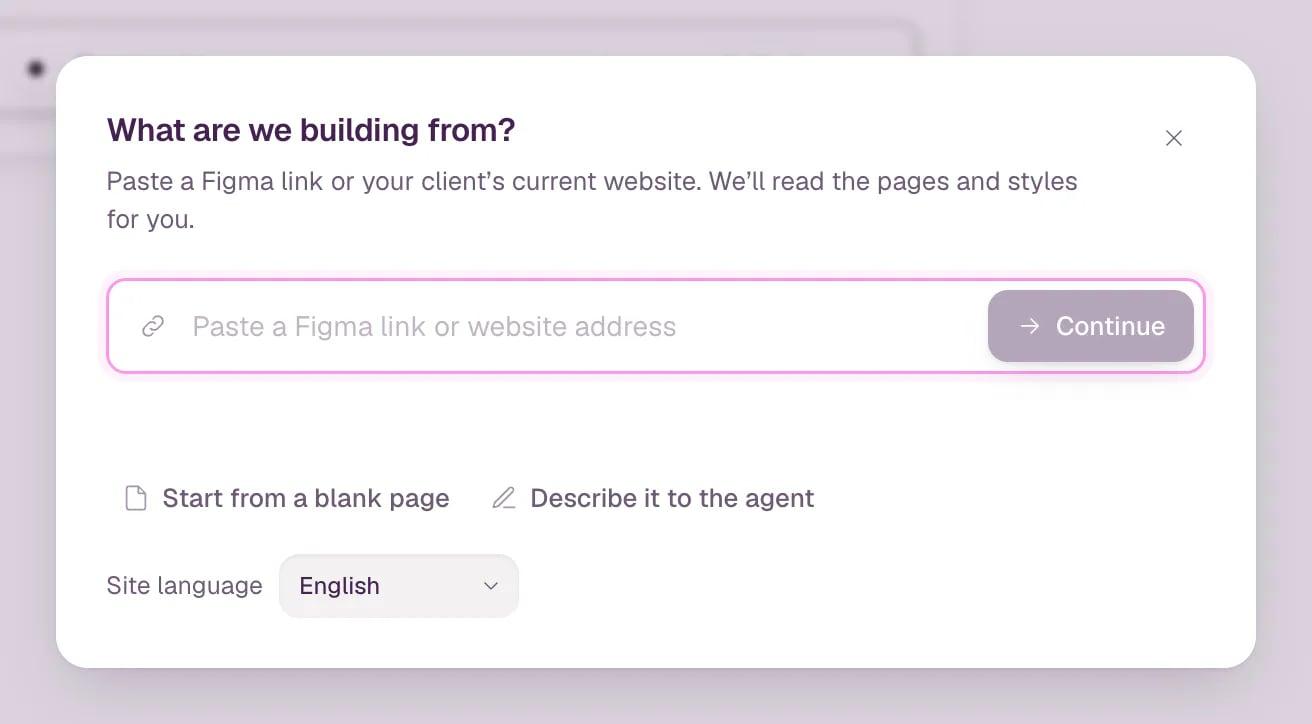
- Link field Paste a Figma link or the address of a website.
- Other starts Start from a blank page, or describe the site to the agent.
- Site language The language of the text on the new site.
- Check Site language. It's the language the new site is written in — English or Czech. Tandmade picks it from your browser.
- Choose how to start: - Paste a link and click Continue. A Figma link gets you a planner that turns frames into pages; a website address rebuilds that site. The line under the field confirms what Tandmade recognised. - Start from a blank page. You get a site with a Home page and a starter hero section to replace. - Describe it to the agent. The site is created and the editor opens with the agent ready for your description.
-
Name the site. When the start doesn't tell Tandmade the name — a blank page, the agent, or a Figma link without the file name — a field asks for it. Type the name and click Create site. With the agent, the button reads Create and describe it.
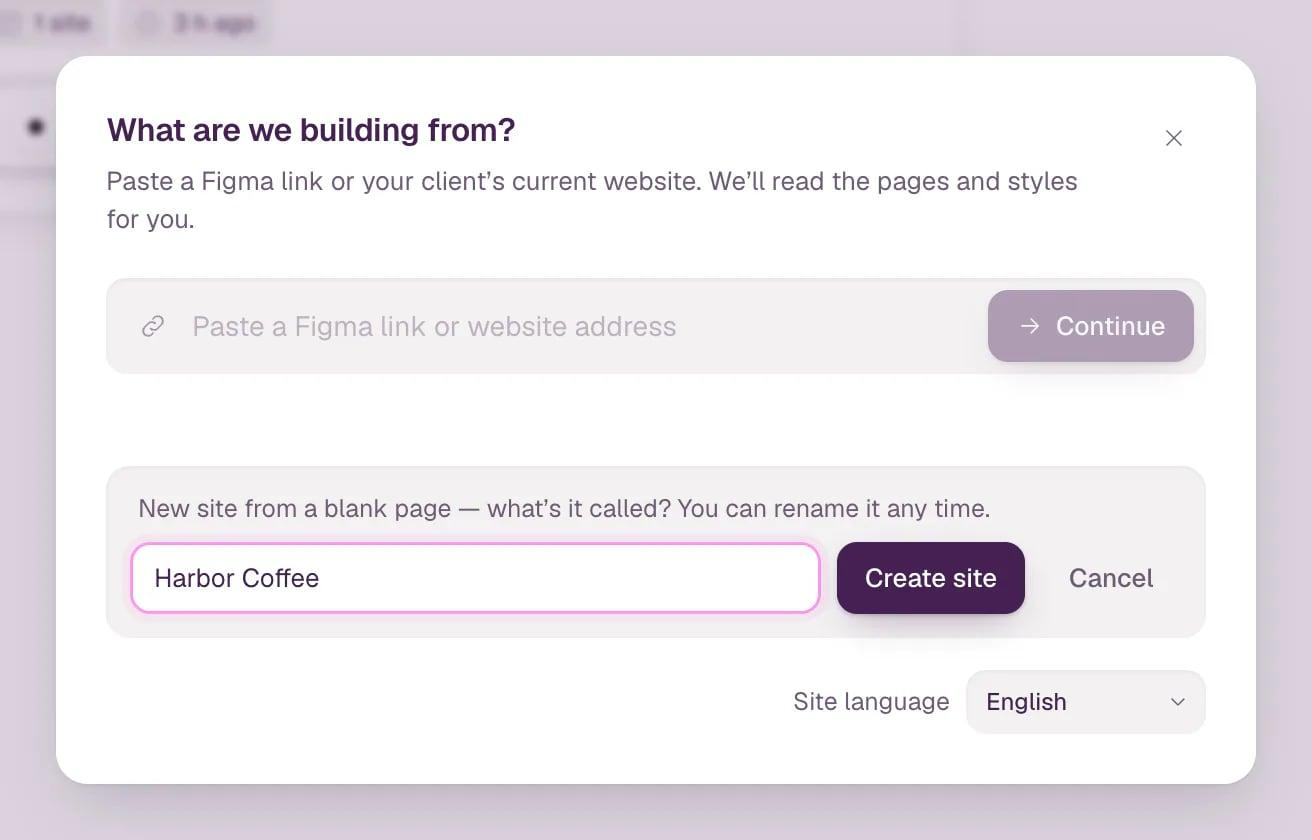
You can rename the site any time.
A link to a website names the site after its domain, and a Figma link after the file, so you skip this step.
-
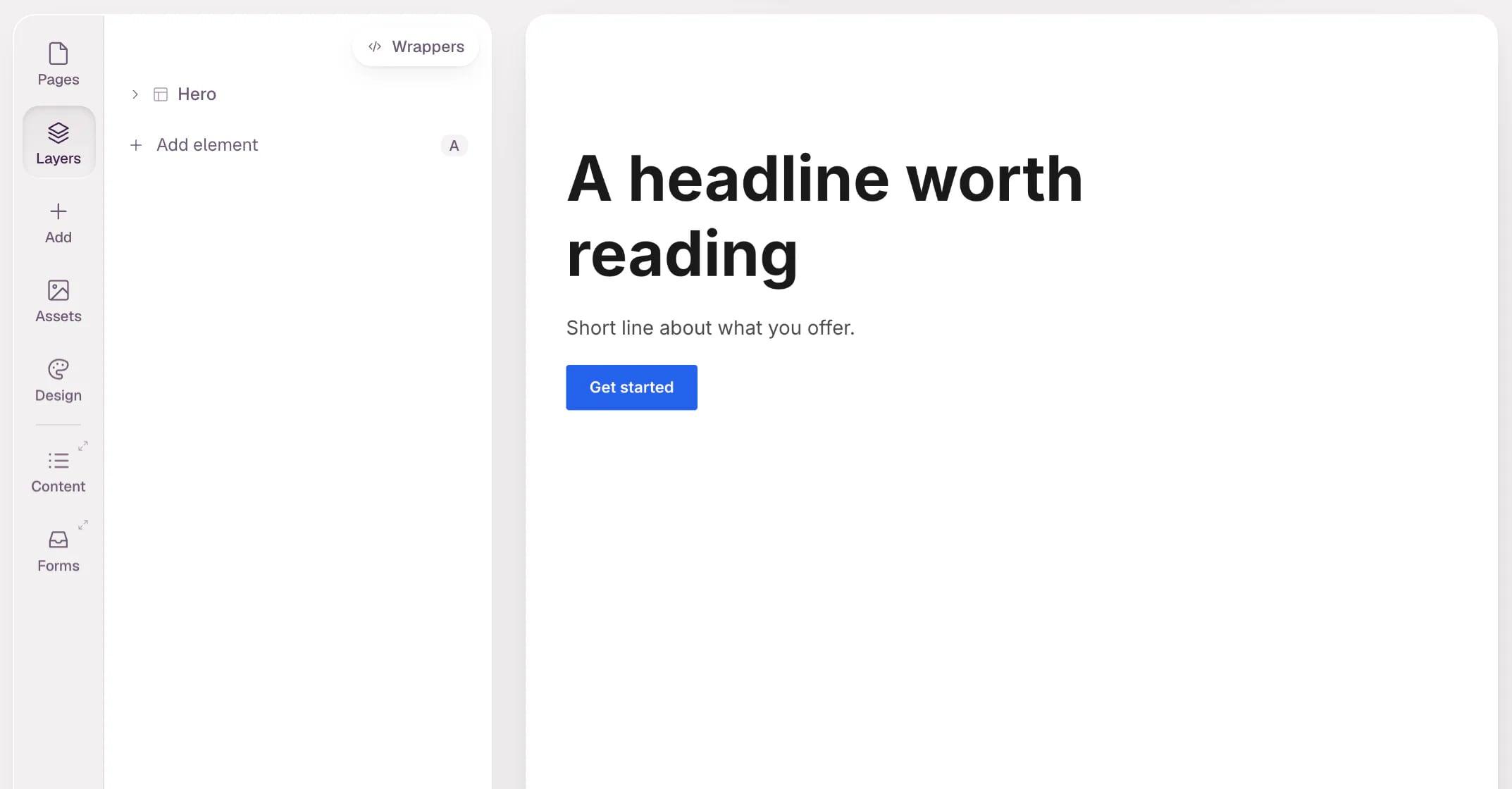
The editor opens with your new site. The page is live on the canvas: click anything to change it.
Where the site lives
Each site you create from the dashboard gets its own project, named after the site. Projects are folders for one client or one job; you can move a site to another project later from its ⋯ menu on the dashboard.
To rename the site, double-click its name on the dashboard, or choose Rename site… in the ⋯ menu.
Tip Next, learn your way around in The editor at a glance. Starting from an existing design? See Start from Figma or Rebuild a live site from its URL.