Build a form
Add a form from the Add panel, put the fields you need in it, preview its sent and error states and send a test submission.
A form in Tandmade is plain HTML in your page. There's no separate form builder: you add the form and its fields like any other element, and the site saves every submission in its own database.
-
Click the place on the page where the form should go. Press A to open Add and find the Forms group.
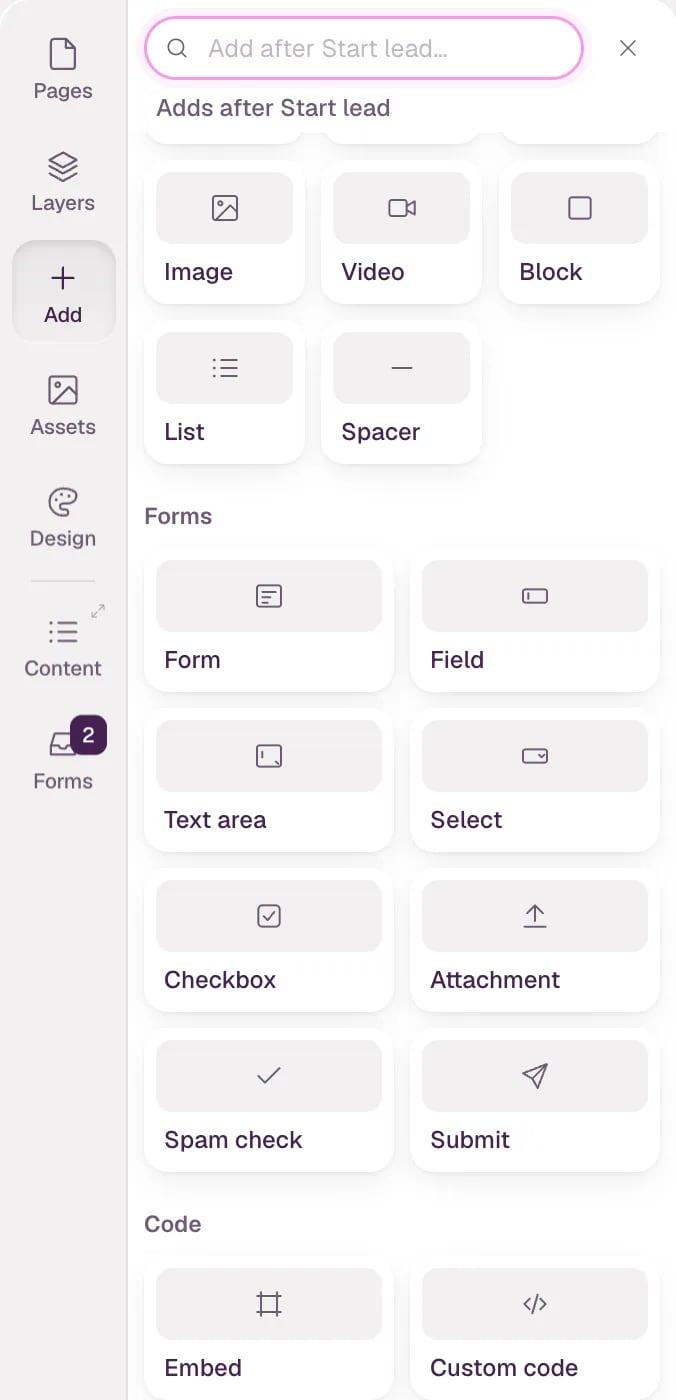
- Form A form with name, email, message and a button.
- Fields Add these inside a form.
-
Click Form and give it a name, like "Contact". The line under the name says where its submissions will show up. Click Insert.
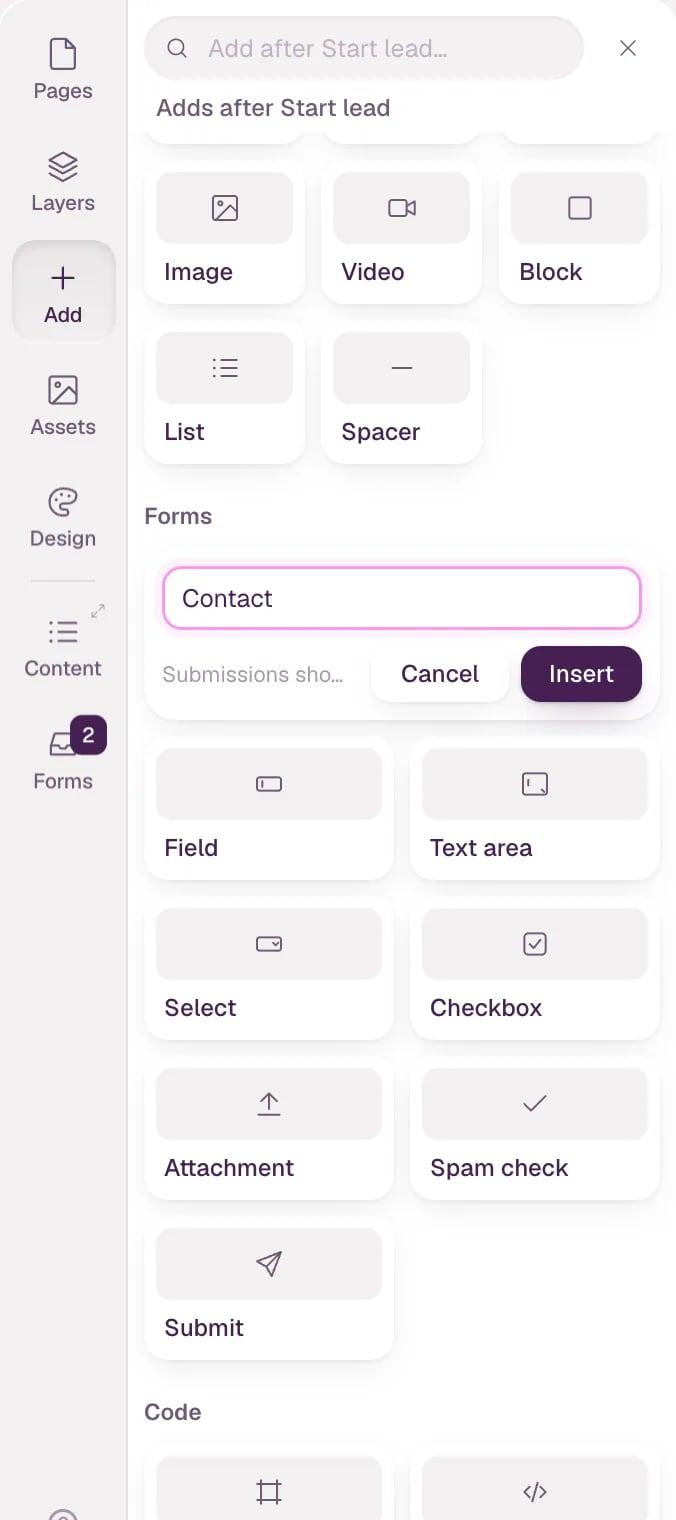
- Add more fields. Select something inside the form, then click Field, Text area, Select, Checkbox or Attachment. Spam check adds an invisible check that stops bots, and Submit adds the send button. Fields only go inside a form.
- Select a field to change it in the inspector: its name, type and placeholder, and whether it's required. Field names are what you'll see in the submissions.
-
Select the form itself. In the inspector, switch between Default, Sent and Error to see the form after it's sent and when it fails. To edit those messages, select them in Layers.
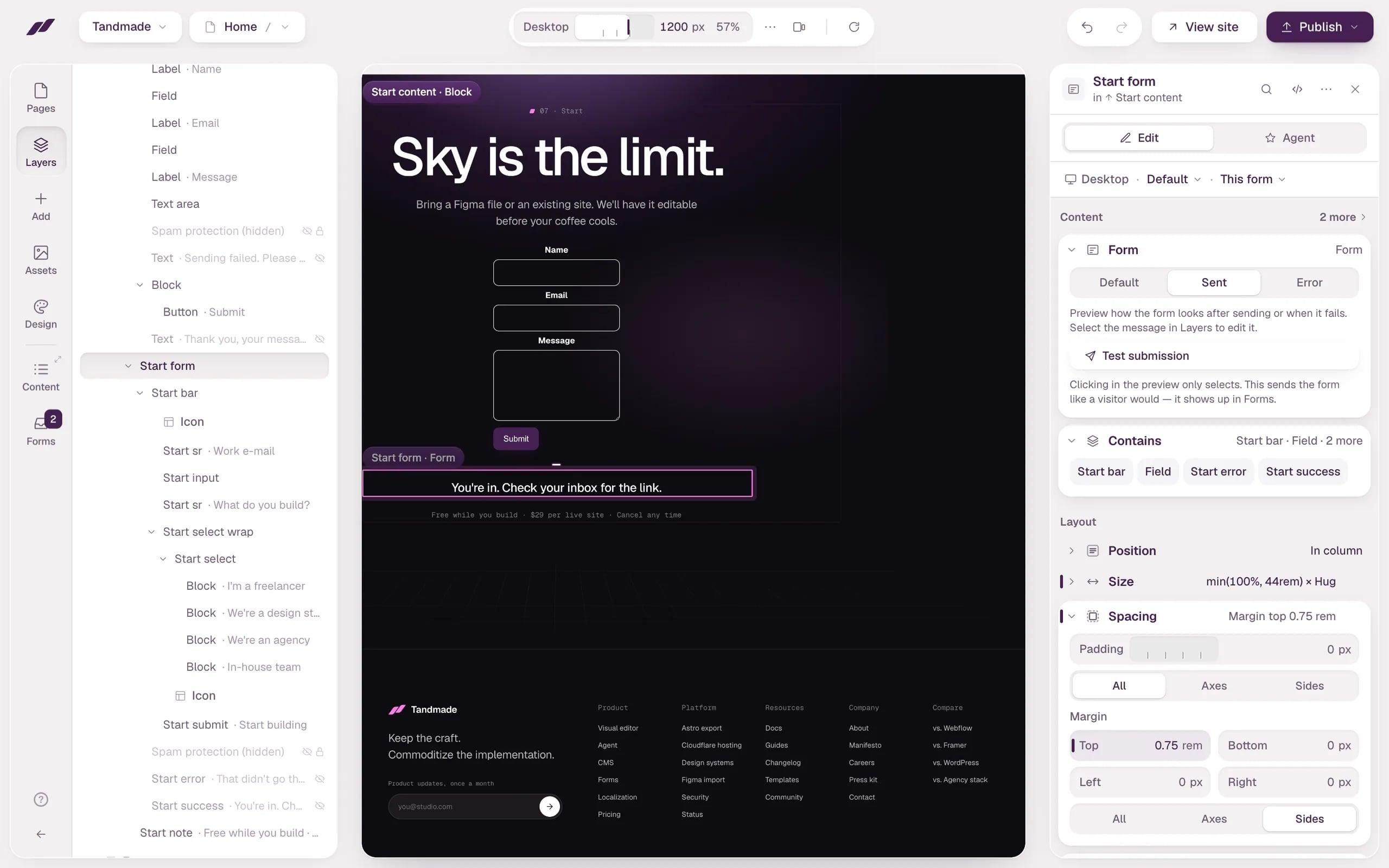
- Form states Preview the sent and error messages.
- Test submission Sends the form like a visitor would.
- Fill in the required fields in the preview, like a visitor would — an empty required field stops the test and the preview points at it. Then click Test submission in the inspector. A message says Test submission received. Click Open in Forms to see it.
A whole section with a form
To add a heading, a short text and a contact form in one go, open Add, go to New and choose Section with form. Name it and click Insert. The section uses your site's styles, like any other section.
The form is its HTML
What a form collects comes from its HTML. This is the form the Form tile inserts when you name it "Contact":
astro
<form class="contact_form" method="post" action="/_forms/contact" enctype="multipart/form-data">
  <label class="form_label" for="contact-name">Name</label>
  <input class="form_input" type="text" name="name" id="contact-name" required />
  <label class="form_label" for="contact-email">Email</label>
  <input class="form_input" type="email" name="email" id="contact-email" required />
  <label class="form_label" for="contact-message">Message</label>
  <textarea class="form_input is-text-area" name="message" id="contact-message" required></textarea>
  <input type="text" name="_gotcha" tabindex="-1" autocomplete="off" hidden />
  <p class="text-size-small text-color-primary" data-form-error hidden>Sending failed. Please try again.</p>
  <div class="button-group">
    <button type="submit" class="button is-form-submit">Submit</button>
  </div>
  <p class="text-size-normal text-color-primary" data-form-success hidden>Thank you, your message has been sent.</p>
</form>
The address /_forms/contact names the form. Each field's name, type and required tell the site what to accept: a submission with an empty required field or a bad email address is turned back with a message, and fields that aren't in the form are dropped. The hidden _gotcha field catches simple bots. The two messages are the Error and Sent states you preview in the inspector.
The same form on several pages, like a footer form and a contact page, is one form with one list of submissions.
Note Submissions are saved before any email goes out, so nothing is lost if an inbox is down. They belong to the site: a client who takes the site over gets them too.
Tip Next, see where submissions, notifications and spam are handled, or publish your site so visitors can send the form.