Publish your site
See what changed since the last publish, check the site, then put it live on a review link or your own domain.
Publish builds your site and puts it on Cloudflare — on a review link to share, or on your own domain. It usually takes under a minute, and you can keep editing while it runs.
Only pages, sections and styles wait for Publish. Content you publish in Content is live right away.
-
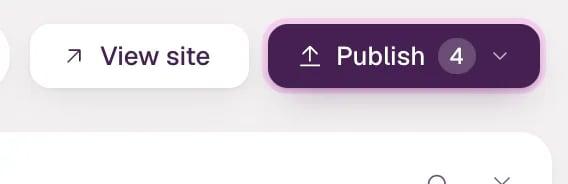
Click Publish in the top bar. The number on the button counts the design and layout changes that aren't live yet.
-
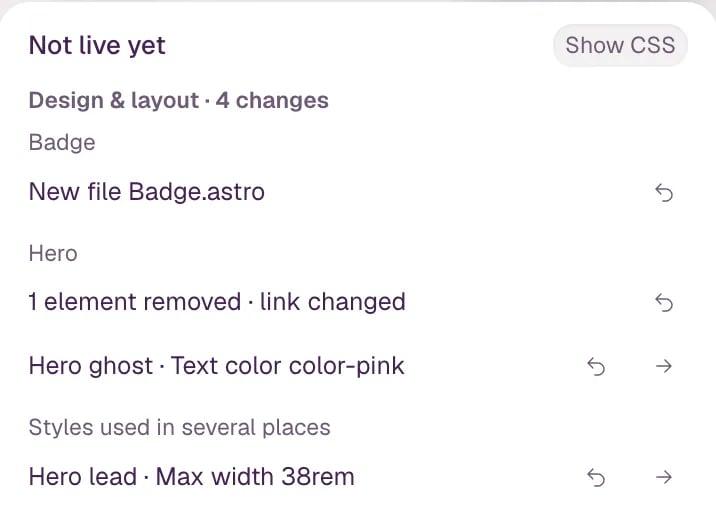
Look over the changes. Design & layout lists them by page and section, in plain words: the element, what changed and the new value. ↩ next to a change reverts just that change — Undo brings it back. → opens the page and selects the element. Show CSS adds the exact lines of code that changed.
-
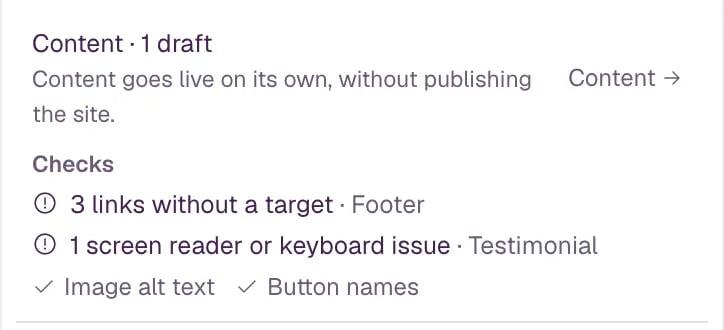
Check the rest of the panel. Content · drafts counts items still in draft — they don't go out with Publish, you publish them in Content. Checks flags links without a target, images without alt text, icon buttons without a name, screen reader or keyboard issues, and page titles or descriptions to fix. Checks never stop you from publishing.
-
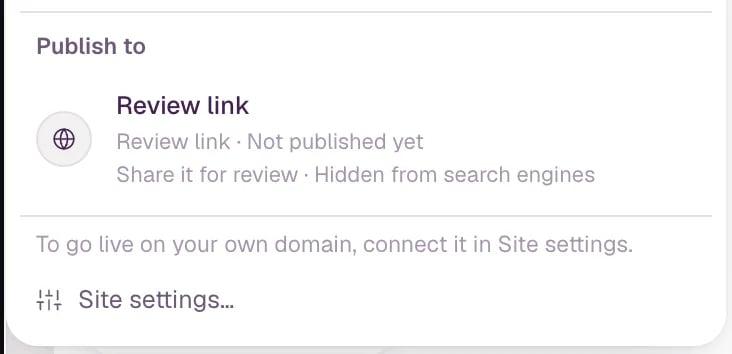
Under Publish to, click where the site should go. Publishing starts right away. Review link is a tandmade.link address to share for feedback before launch — search engines never list it. Live site is your own domain. It shows up here once you connect a domain, and you can publish to it once the domain is verified.
While it runs, the panel ticks off each step, like Building the site and Uploading files. Then you get the address with a link to open it. On your own domain, the panel says Published — switch DNS to go live until the domain points to Tandmade.
Check the site before you publish
View site in the top bar builds the site the same way Publish does and opens it in a new tab, with published content only. That's exactly what visitors will get.
Restore a previous publish
Restore a previous publish… at the bottom of the panel lists your last publishes — when, and whether they went to the review link or the live site.

Restoring changes the site in the editor, not the live site: publish again to make it live. Content stays as it is, and Undo brings your changes back.
If publishing fails
When the site doesn't build, the panel says Publishing failed and offers Fix with agent. It opens the Agent tab with the problem and the build output already filled in — read it, then send it. Try again publishes again, and Show details shows the raw output.
Tip Next: connect your domain, set up page SEO and social images, or review the site settings.