Page SEO and social images
See how a page looks in Google, then set its search title, description, visibility and the image shown when someone shares it.
Every page has a title and a description for search results, and an image for when someone shares the link. Tandmade fills them in from the page. You check them and change them per page.
With nothing selected, the inspector shows the page you're on: how it looks in Google, its share image and quick checks.

- How it looks in Google The result exactly as the published page will show it.
- Checks What's fine and what's missing: title length, description, share image.
- Edit SEO & social… Opens the page's settings.
- Press Esc until nothing is selected, then click Edit SEO & social… in the inspector. Page settings opens for the page. You get the same dialog from Pages: hover a page and click its settings icon.
-
Type an SEO title and a Description. The preview at the top changes as you type, and you can switch it between Google and Social card. The counters show where Google cuts text off: about 60 characters for the title and 160 for the description. Leave the SEO title empty to use the page name.
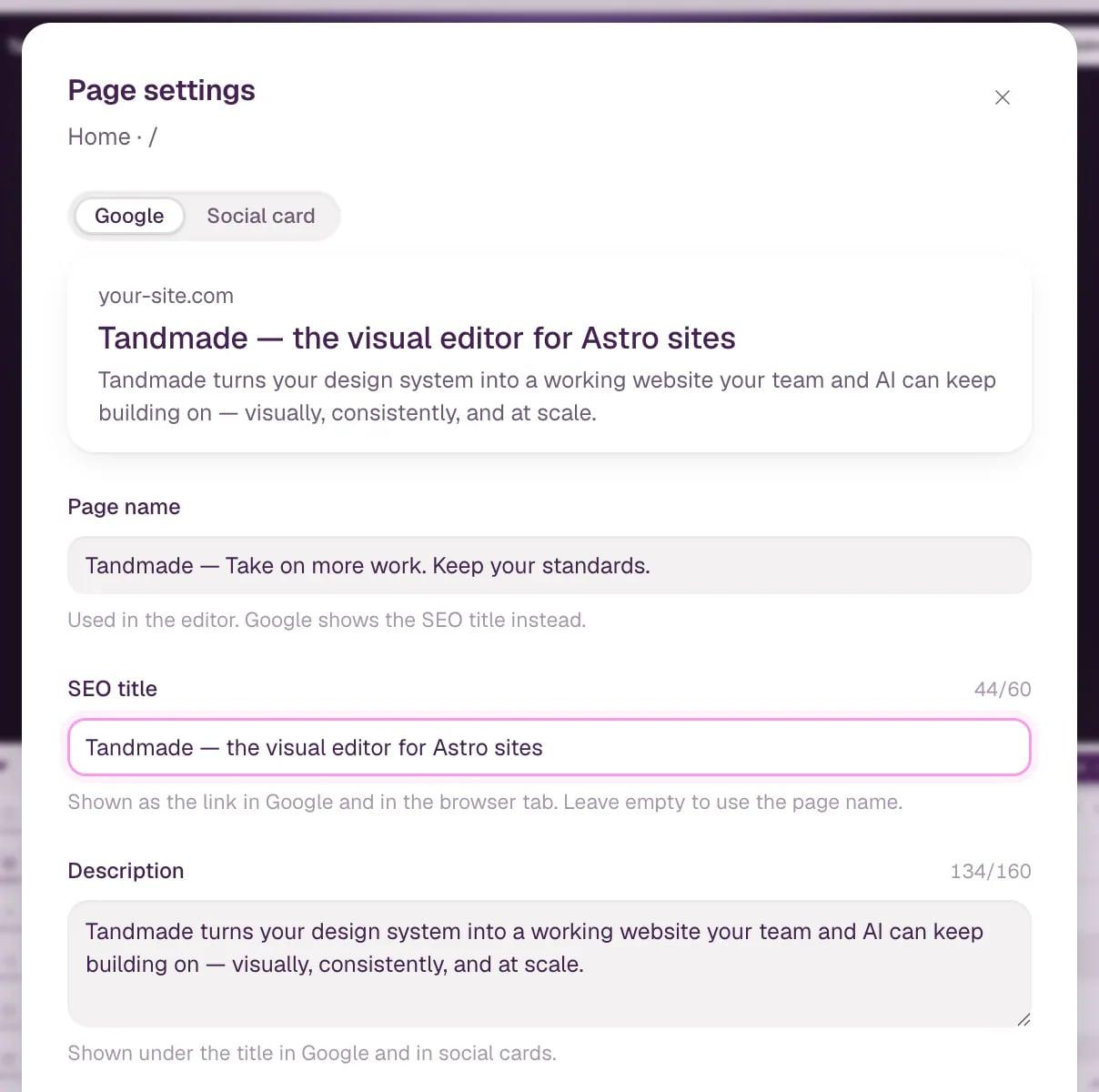
- Scroll down to Show in search results. Turn it off for pages that shouldn't be found, like a thank-you page. The page is also left out of the sitemap.
-
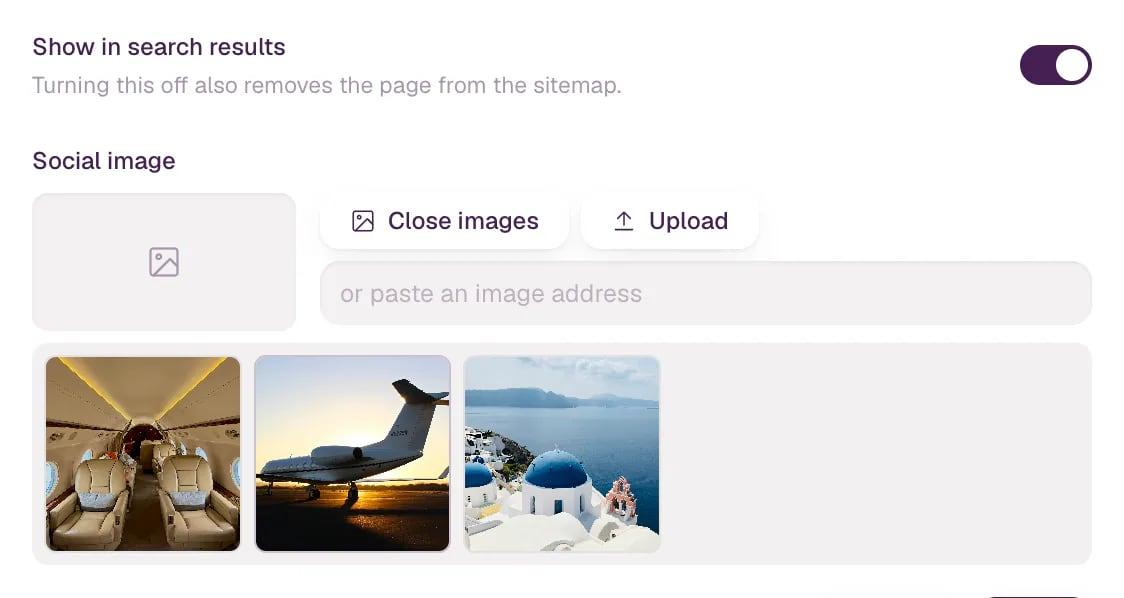
Under Social image, click Choose to pick an image from the site, or Upload a new one. You can also paste an image address. A 1200 × 630 JPG or PNG works everywhere.
-
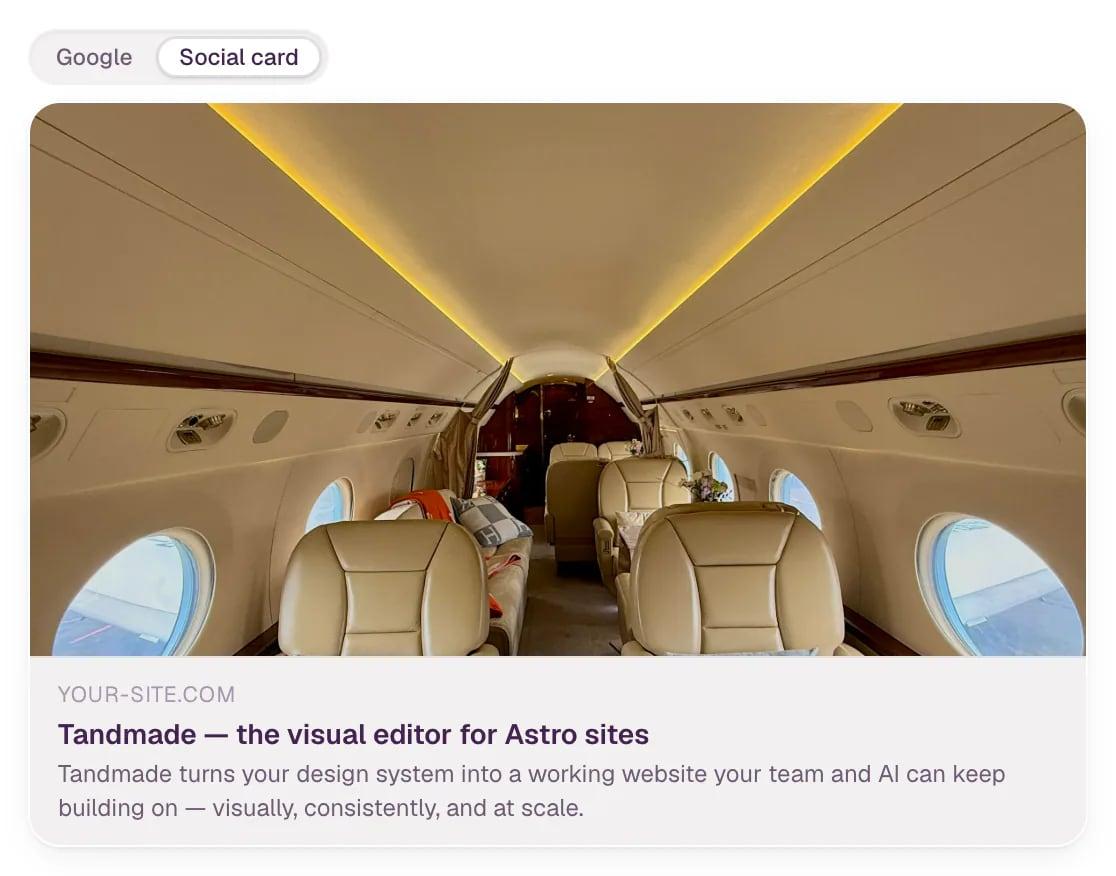
Click Social card at the top to check the shared link, then click Save.
SEO settings are part of the site's code, so they go live with your next publish.
What Tandmade does for you
You don't set these up. Every page gets a canonical address, Open Graph and X cards for sharing, structured data and a place in the sitemap. On a site with more languages, each language links to the others.
Note A page without its own description or image uses the defaults from Site settings › SEO & sharing. Blog posts and other collection items have their own SEO fields in Content.
Tip Check every page at once in the SEO overview. Set site-wide defaults in Site settings, and translate titles per language in Add a language and translate.