Add a language and translate
Add a language to the site, switch the preview between languages, and translate pages, page titles and content items.
A site can have as many languages as it needs. Each language gets its own addresses, like /de/pricing for German, and search engines see which page belongs to which language. Until a page is translated, it shows the default language.
-
Click the site's name in the top bar and choose Add language….
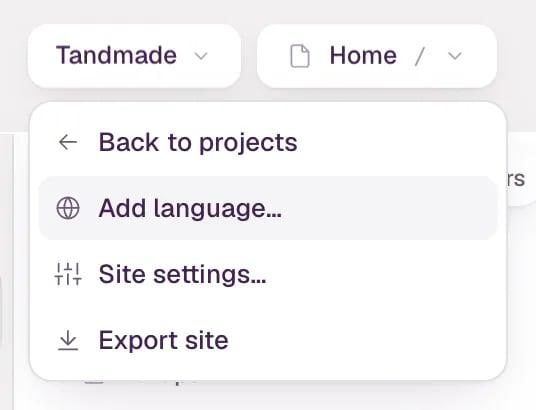
-
Pick a language from the list, or type a code like
de-AT, and click Add. The preview restarts with the new language, which takes a moment.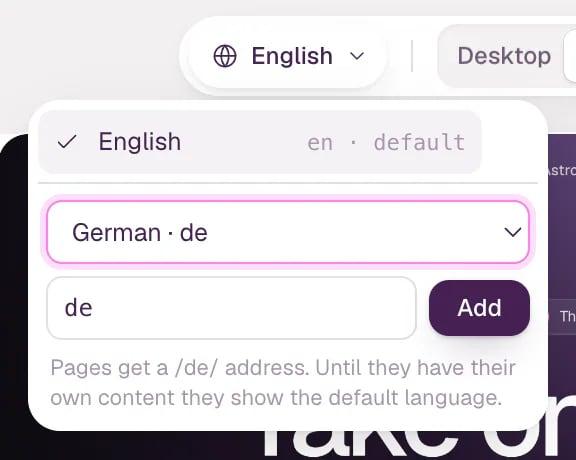
-
A language chip appears in the middle of the top bar. Click it to switch the preview between languages and to manage them. The tick marks the language in the preview, and the default language says so.
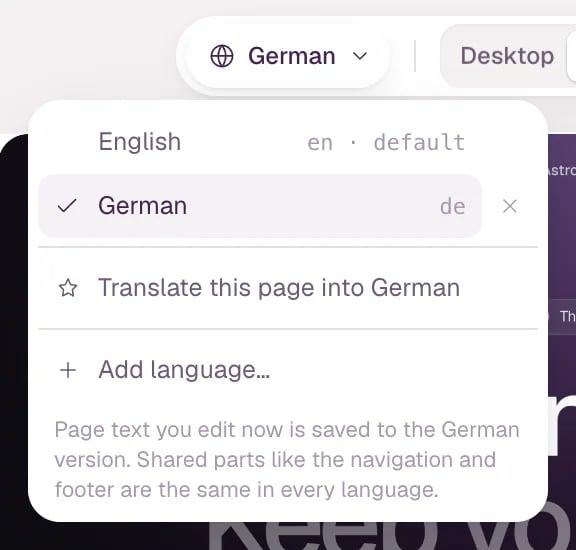
-
Choose Translate this page into German. The preview switches to German and the Agent tab opens with the request filled in. Read it, then send it — the agent translates the texts and keeps the design.
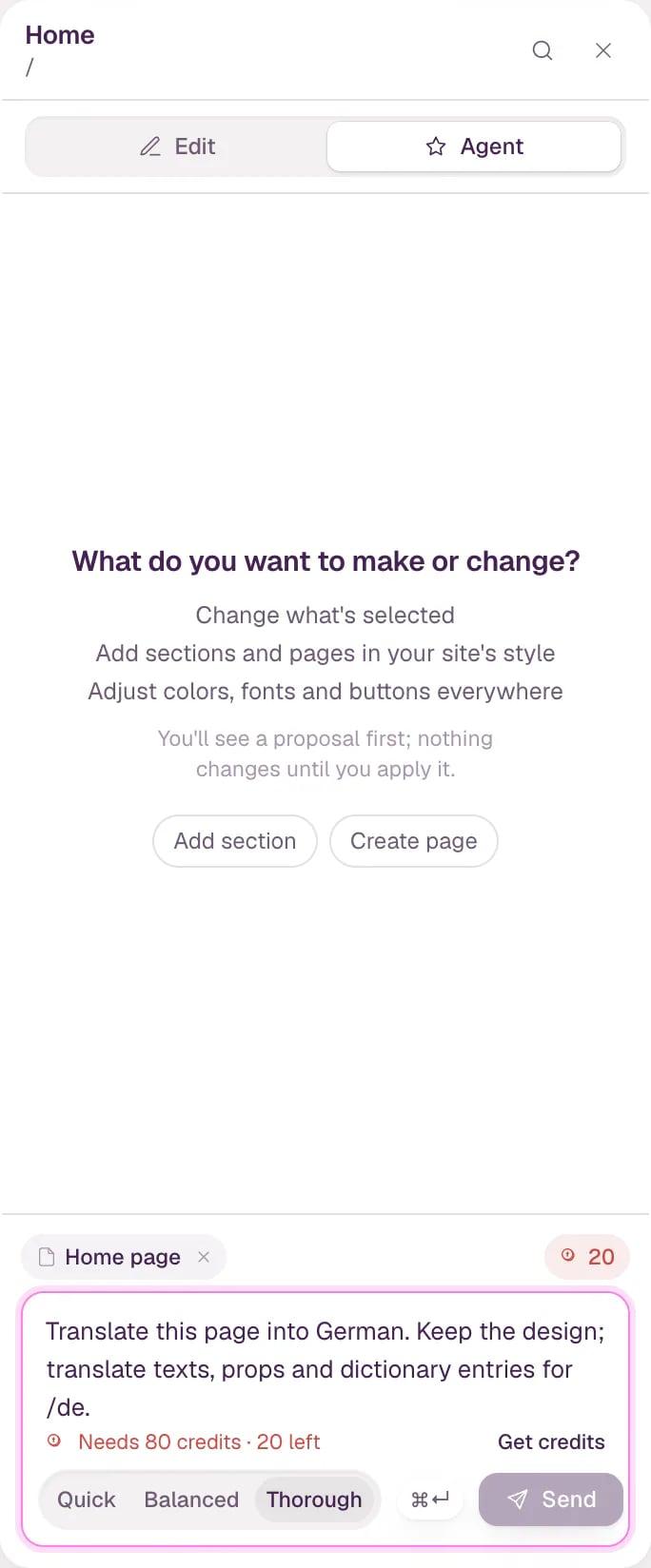
-
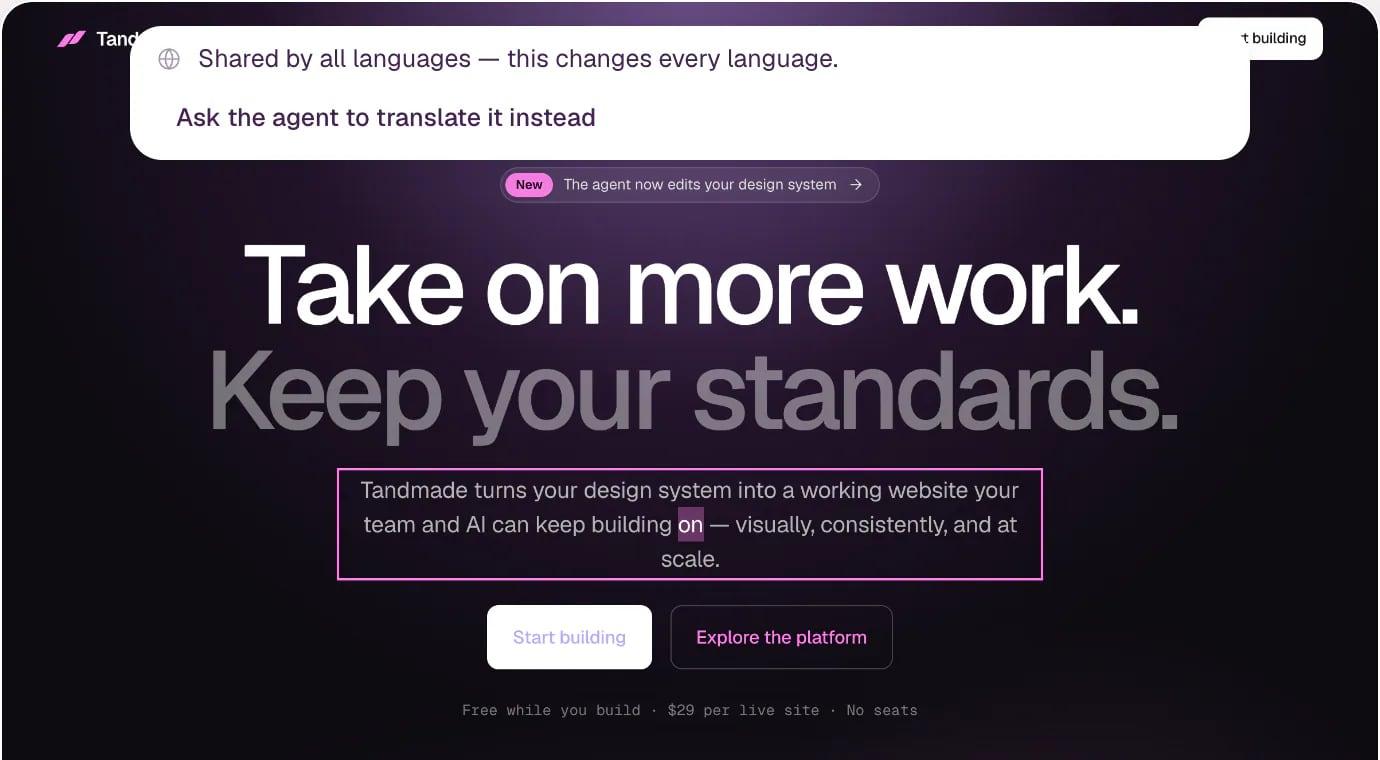
Or edit text in place while German is in the preview. Text that lives outside the page itself — the navigation, the footer, a shared section — is the same in every language. When you start editing such text, the editor says so before you type and offers Ask the agent to translate it instead.
-
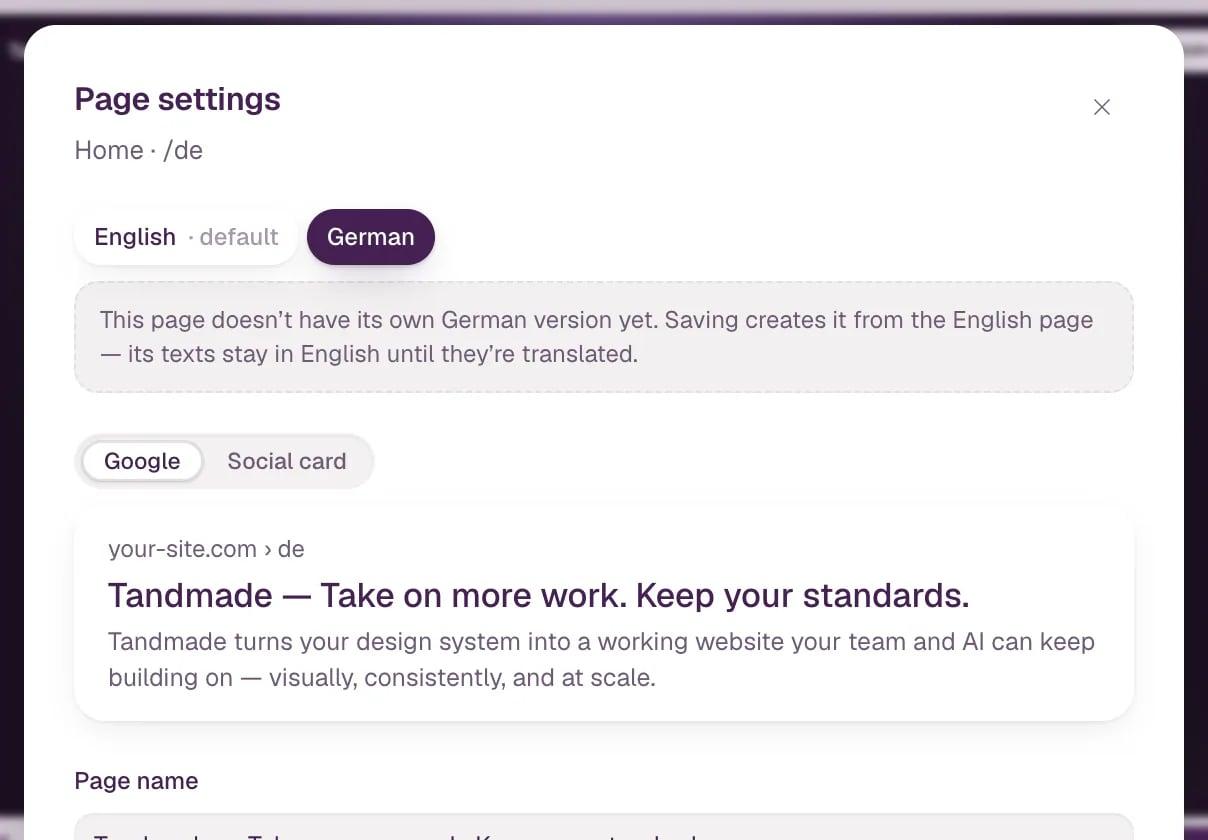
Translate the page's title and description: open Page settings, for example with Edit SEO & social… in the inspector. Language chips at the top switch between versions. The URL and Show in search results apply to every language, so you change them in the default language.
-
Translate content items in Content. Open an item: chips at the top show its languages. Click a dashed chip to create that translation as a draft, with the fields copied for you to translate.

Change the default language
The default language is the one your pages are written in. Hover it in the language menu and click the pencil. Nothing is translated — search engines, browsers and dates just use the right language. You can change it only while no other language has translated pages or texts.
Remove a language
Hover the language in the menu and click ×. Its /de/ addresses stop working and visitors see the default language only. Pages with a German version are kept offline and come back if you add German again — unless you tick Delete these pages. Translated content items stay saved and return too.

What search engines see
The default language stays on the bare address (/pricing) and every other language gets a prefix (/de/pricing). Each page links to its versions in other languages. A page that isn't translated yet tells search engines to index the original instead.
Tip Set titles and images per page in Page SEO and social images. For bigger changes, work with the agent.