See who visits and what brings contacts
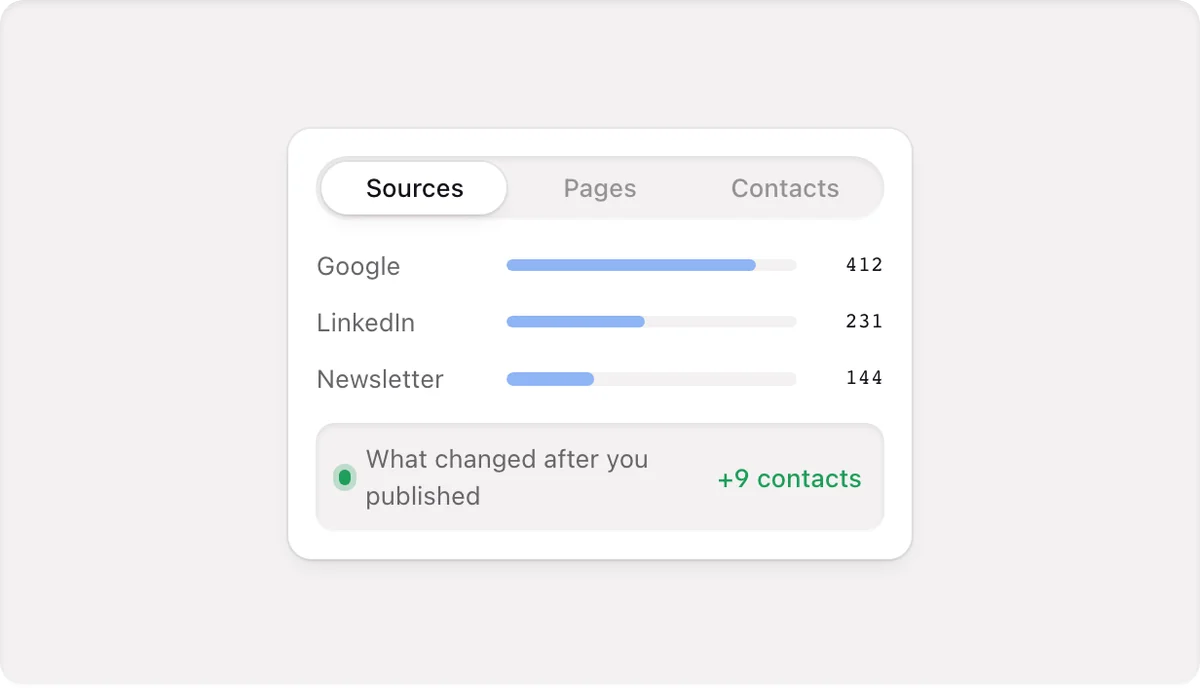
Every published site has analytics on from the start, without cookies, a cookie banner or personal data. Switch from Edit to Analyze to see where visitors come from, which pages bring contacts and what changed after you published.
There's nothing to install and no script to add: visits are counted on Cloudflare's servers as pages are delivered.
Open Analyze
Click Analyze in the top bar's Edit | Analyze switch. The Overview starts with one sentence that sums up the numbers, then:
- Results and contacts — what visitors sent through your forms.
- What changed after you published — how contacts per 100 visits moved after each publish.
- Needs attention — pages that return "not found" and other problems, each with a fix.
The questions it answers
| Question | Where |
|---|---|
| Where do visitors come from? | Sources: search, ads, direct, social networks, AI assistants, campaigns, email and links, each with visits and contacts |
| Which pages work? | Behavior: where visits start, where people go next, and the pages ranked |
| Who are they? | Audience: devices, countries, and the busiest day and hour |
| Is my blog read? | Content: views of each post, visits that started on it and contacts it brought, including posts nobody reads |
| Do AI assistants read my site? | AI and search: which crawlers read your pages, llms.txt and sitemap |
Pick the period at the top: today, yesterday, 7, 30 or 90 days, this or last month, or your own dates.
Privacy
- No cookies and no cookie banner.
- No IP addresses, device fingerprints, cities, form contents or address parameters are stored (except UTM campaign tags).
- Only your live site counts; the review link and the editor's preview don't.
- Bots, scanners and link previews from Slack or WhatsApp are filtered out.
- Data is kept for three months.
You can switch analytics off per site in Site settings › Visitor analytics, which also gives you a paragraph for your privacy policy.
Before your site is live A site that doesn't run on its domain yet shows the steps instead of numbers: Activate site → Connect domain → Publish.
Next Compare periods, see the effect of each publish and follow visitors' paths: Analyze in depth.