Work together on a site
Several people can edit the same site at once and see each other on the page. Clients comment right on the page, and a comment can go straight to the agent. There's nothing to set up, and people are free.
Invite your team and your client, and work in the same site at the same time. Nobody overwrites anybody.
See who's here
The faces of everyone in the site are in the top bar, including AI apps connected through MCP. Hover one: "Jana Nováková — Editing Heading · on /pricing". Click it to go to the page and element where they're working.
- Other people's selections show on the page in their color, and their changes flash briefly when they land.
- If you open something someone else is changing, the panel says so: "Jana Nováková is editing this too".
- Everyone has their own undo. ⌘Z never takes back a teammate's step or the agent's.
- In a collection item, if two people change the same field, you choose Use theirs or Keep mine.
Comment on the page
Turn on Comments in the top bar, or press ⇧C.
- Click an element to pin a comment, or drag to mark an area.
- Write it. Type @ to mention someone; they get an email with a link straight to the thread.
- Replies go in the thread. Done closes it, Reopen brings it back.
A comment remembers the screen it was written on, like "Mobile · 390 px", and shows there; clicking it switches the page to that size. The panel has Open, For you and Done.
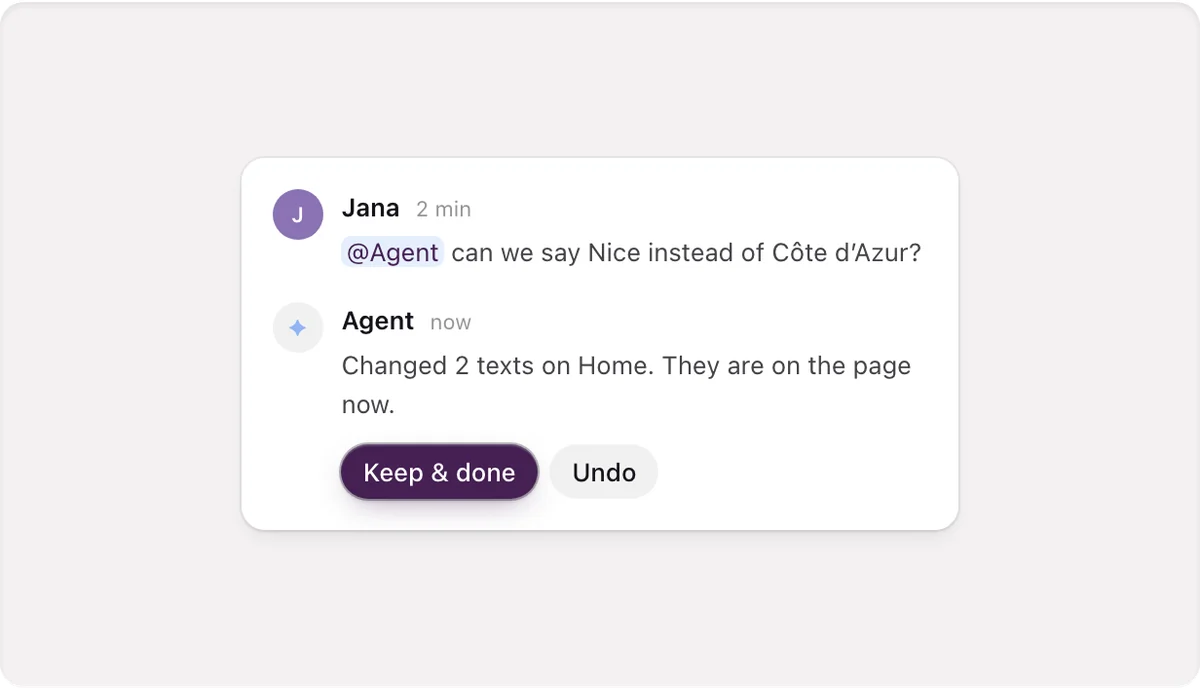
Hand a comment to the agent
Click Hand to agent in a thread, or write @Agent in a reply. The agent works where the comment is pinned and answers in the thread, with Keep & done and Undo when it changed something. A comment never starts the agent by itself, so a client's comment waits until someone on your team hands it over. See Comments in depth.
Free for everyone Tandmade never charges for people. Invite your whole team and your clients. See Team, roles and access.